A new CRM goes live in three weeks. The documentation is stale, subject matter experts are busy closing the rollout, and the help desk is already receiving questions about tasks nobody has formally taught yet. Your team doesn't need another polished overview. It needs a dependable way for a sales manager to find the right screen, complete the right action, and recover when the workflow doesn't behave as expected.
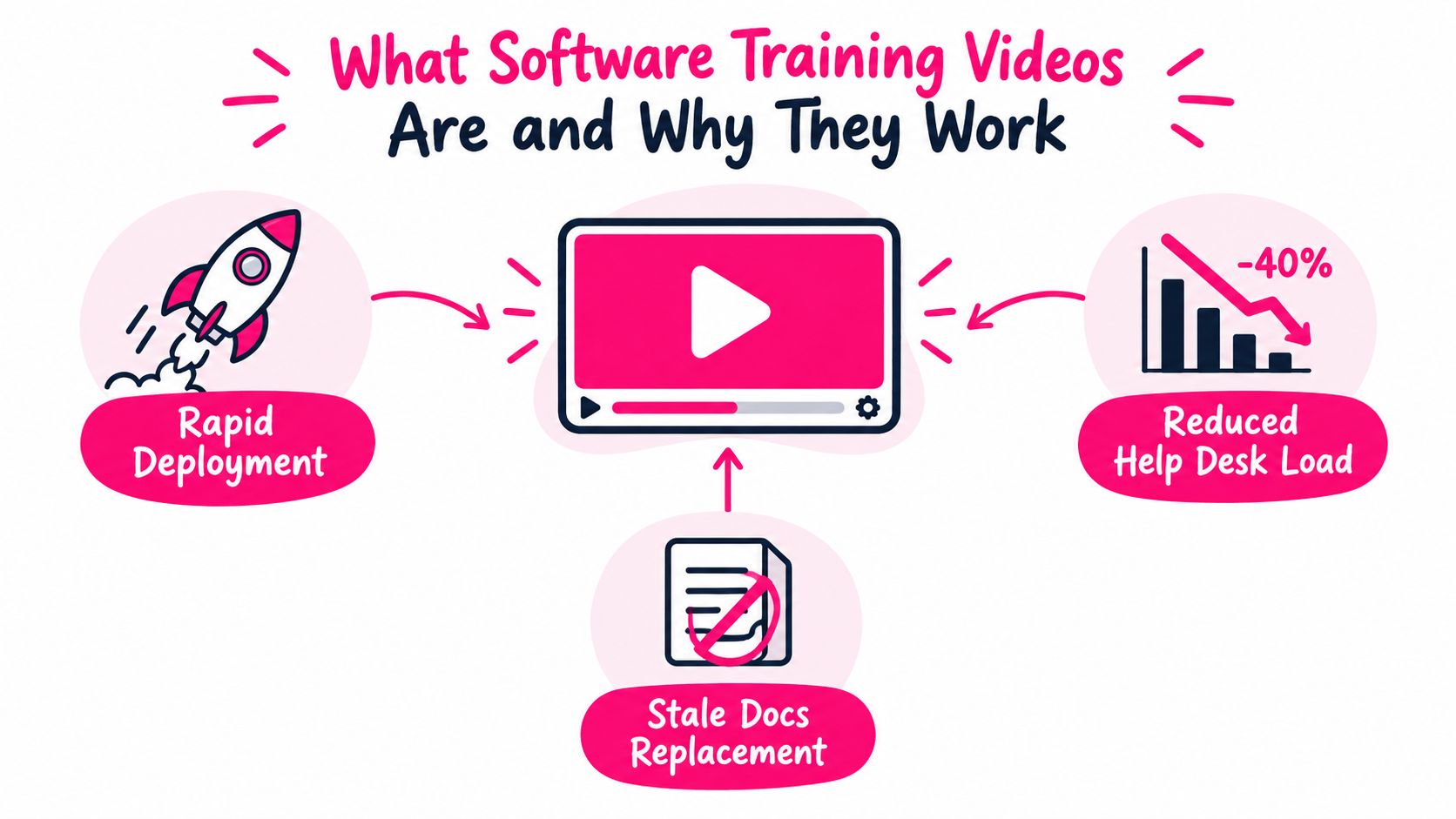
That's the job of software training videos. The strongest examples act as task-completion job aids, not passive explainers. They meet learners inside a specific interface, show a defined workflow, and remain useful after the launch session is over.
Table of Contents
- Why the interface matters - Match the format to the learning objective - Give every clip one job - Keep the unit brief, but not artificially tiny - Pair what learners hear with what they see - Make each clip stand alone - Add retrieval cues and a prompt - Map decisions and recovery paths - Use templates for repeatable work - Add review gates before release - Make access part of production - Standardise the library - Decide what to build and refreshWhat Software Training Videos Are and Why They Work
A software training video answers a practical question: “What do I need to do in this system right now?” It might show a recruiter how to move a candidate to the next stage, an accounts payable specialist how to resolve a rejected invoice, or a support agent how to escalate a ticket with the required fields completed.
That makes it different from a product demo. A demo highlights what a platform can do. A marketing video creates interest. A classroom session gives people access to an instructor and peers. A written SOP records policy and detail. A software training video sits closer to the moment of work, where the learner needs visual confirmation of the interface and the correct sequence of actions.
A useful learning system combines these formats rather than forcing one to do everything:
- Classroom training creates shared context and gives learners a place to ask complicated questions.
- Written procedures provide durable reference material, definitions, exceptions, and governance.
- Sandbox practice lets learners make decisions without damaging live records.
- Software training videos demonstrate the exact path through the actual interface when a person needs to complete a task.
A historical marker supports this role. In a 2019 employer-and-employee survey, 91% of employers reported using at least some video for training or learning and development, while 90% of employees said they had used video to learn a specific skill. The survey also found that 69% of employees preferred video to a written document when learning a new skill. These findings are reported in Clueso's overview of microlearning for employee training.
Why the interface matters
Video preserves context that written instructions often remove. The learner can see the menu location, the field label, the cursor movement, the confirmation message, and the visual difference between a valid and invalid state. That context reduces the effort required to translate abstract instructions into action.
A narrow clip also lowers cognitive load. Instead of asking a new user to remember an entire CRM tour, you show one workflow, such as creating a lead from an inbound email. The learner can pause, replay, and return to the exact moment that matters. Technical guidance from TechSmith on knowledge retention with video training specifically identifies screen capture as the appropriate format for teaching software workflows.
> Practical rule: If a learner must look at the screen to know whether they performed the step correctly, show the screen.
Software training videos also become reusable reference points. Store them in an LMS, knowledge base, in-app help center, or searchable team hub, then connect each clip to the task name and interface path. A learner who missed a live session can use the same resource as someone who attended it. A support specialist can share the relevant clip instead of rewriting the same instructions in a ticket.
The rest of this guide turns that principle into a working system. You'll choose a format by learning objective, design clips around retention, decompose workflows into useful boundaries, produce them with AI-assisted tools, publish them accessibly, and run a focused rollout that creates value before the library becomes a maintenance burden.
Main Types and Formats You Will Use
No single production style fits every software learning problem. A screen recording is excellent for showing a click path, but it won't explain why a transformation matters. An animated explainer can frame a new operating model, but it can't replace seeing the actual ERP field a learner must complete.
| Format | Best Use Case | Typical Length | Hours per Finished Minute | Best Fit in Journey | |---|---|---|---|---| | Screen-capture walkthrough | Exact software procedures and troubleshooting | Short | Low to moderate | Onboarding and just-in-time support | | Click-through demo | Guided navigation with controlled interaction | Short to medium | Moderate | Guided practice | | Narrated slide tutorial | Concepts, terminology, and process context | Medium | Low to moderate | Before system practice | | Live-action host piece | Motivation, change narrative, and leadership communication | Medium | High | Rollout and adoption | | Animated explainer | Abstract concepts, policy, and decision logic | Short to medium | Moderate to high | Orientation and reinforcement | | Sandbox simulation recording | Risk-sensitive practice in a safe environment | Medium | Moderate | Role-based practice | | In-app micro clip | One action surfaced beside a feature or help button | Very short | Low once templated | In-the-moment support |
Match the format to the learning objective
Screen-capture walkthroughs should be the default when the learner needs to reproduce a sequence inside a live interface. Use a clean test account, readable zoom, deliberate cursor movement, and a voiceover that explains the reason for each meaningful action. These clips are usually inexpensive to create and easy to update when the workflow is modular.
A click-through demo adds controlled interaction. It works well when learners need to choose among paths, identify the right field, or practise navigation without touching production data. It takes more design effort than a simple recording, but it can reveal whether the learner understands the sequence rather than merely recognising it.
Narrated slides suit conceptual framing. Use them to explain what a new planning system changes, how roles connect, or which terminology appears in the interface. Don't use slides to imitate a screen recording. If the learner needs to locate a button, show the button in context.
A live-action host earns its production cost when people must understand the human reason for a change. A manager explaining why a new ticket triage process matters can create motivation that a cursor alone can't provide. Keep the host segment separate from detailed procedural clips so the job aid remains easy to revisit.
Animation helps with invisible processes, such as approval logic, data movement, or compliance consequences. Sandbox recordings are useful when learners need to perform a complete scenario, including mistakes and recovery. In-app micro clips are the most scalable option for recurring support because they appear at the point of need, but they must stay tightly connected to the feature beside them.
> When the goal is retention of a software procedure, start with screen capture. When the goal is motivation, use a human voice. When the goal is conceptual framing, use animation.
Microlearning Design Principles That Drive Retention
A recording becomes a learning tool only after you design the learner's action. The right question isn't “How much of the system can we show?” It's “What should this person be able to complete without help?”
Give every clip one job
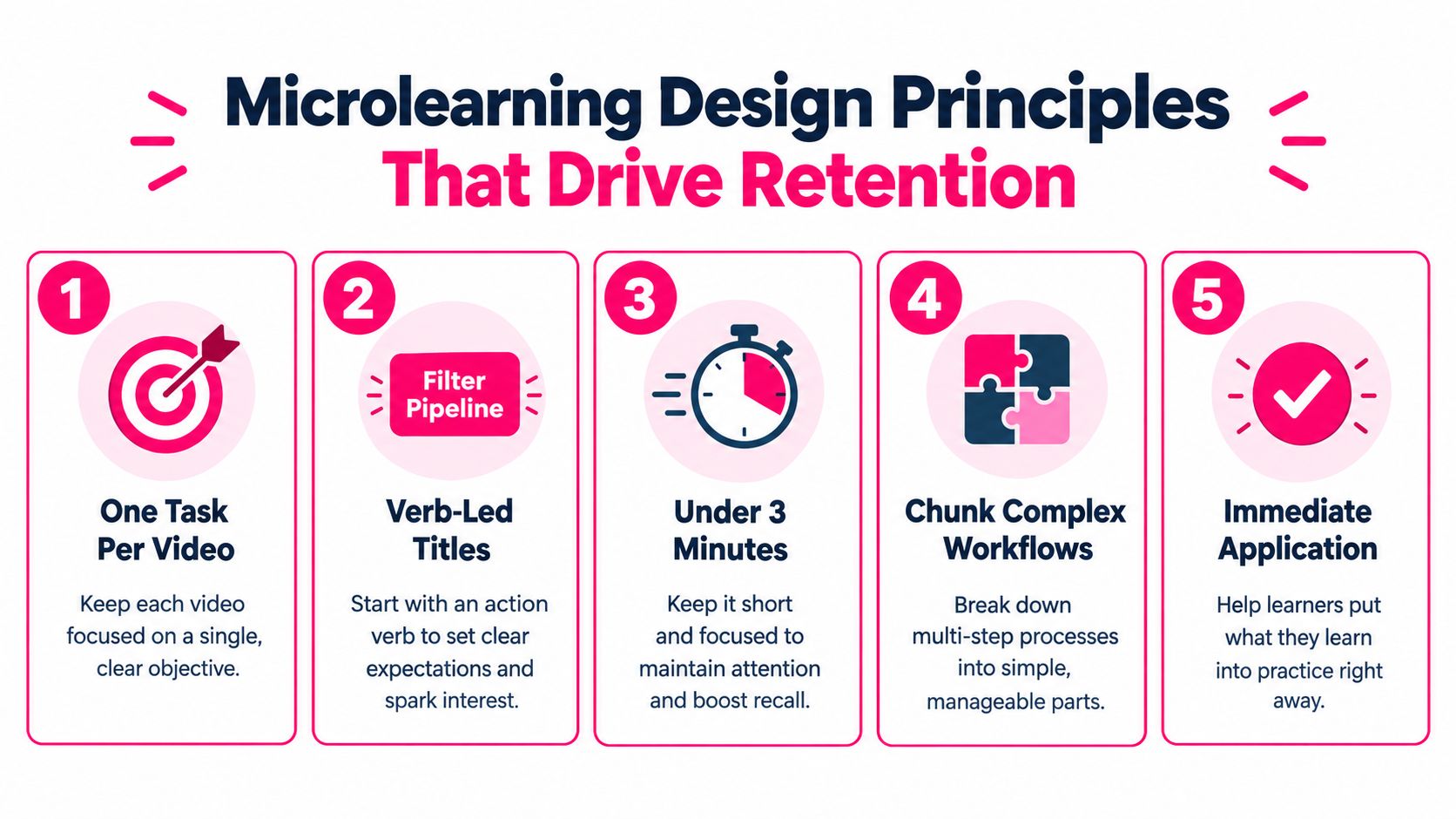
Use a verb-led title such as “Filter your pipeline by close date” rather than “Pipeline reporting.” The first title promises an action and gives the learner a searchable phrase. In a CRM, show the filter, the date condition, and the visible result. Don't combine filtering, saving views, exporting data, and sharing dashboards in the same clip unless the learner genuinely needs all of those actions to complete one outcome.
Keep the opening concrete: “After this clip, a sales representative can filter open opportunities by close date.” That statement gives the SME a testable review criterion and gives the editor a reason to remove unrelated footage.
Keep the unit brief, but not artificially tiny
Short software training videos are easier to complete and revisit. A 2025 industry synthesis reported that microlearning courses typically reached about 80% completion, compared with around 20% to 30% for long-form eLearning, and cited retention gains of 25% to 60% versus traditional methods. Those figures appear in Engageli's microlearning statistics analysis.
Don't treat brevity as a rule to cut essential context. A simple ticket assignment may need a compact clip. A regulated ERP close process may need a sequence of clips, a longer guided demonstration, and a practice activity. The test is whether every scene helps the learner make the intended decision or complete the intended action.
Pair what learners hear with what they see
Synchronise narration with cursor movement. Say, “Open the customer record, then select Renewal,” while the recording shows those actions clearly. Don't read a silent list of steps over a screen that moves too quickly for the learner to identify the relevant field.
Use dual coding carefully. A brief voice explanation plus a highlighted interface element reinforces the same idea. Decorative animation, dense captions, and multiple moving callouts compete for attention.
Make each clip stand alone
Put the task goal at the beginning and the completion signal at the end. A ticketing clip might open with the incoming ticket state and close with the assigned queue, priority, and saved status visible on screen. If a learner finds the clip through search, they shouldn't need to watch an earlier episode to understand what success looks like.
For a practical lesson on pacing and structure, use this guide to structure and pace a video lesson. Apply the same pattern across CRM, ERP, and service desk content so learners recognise the rhythm without having to learn a new presentation style each time.
Add retrieval cues and a prompt
Show the exact menu path, the field label, and any keyboard shortcut that saves time. End with a prompt such as, “Open your practice account and create one filtered view.” A controlled workplace study found that learners who watched video with interpolated questions or took part in structured discussion remembered the material 25% to 26% better than passive viewers, with testing conducted 20 to 35 hours later showing that the effect persisted. Guidde's guide to effective training videos discusses this evidence and its application to video design.
The prompt matters because software knowledge is procedural. Learners need to reconstruct the path, not merely recognise a familiar screen.
Turning a Workflow into a Sequence of Task-Based Clips
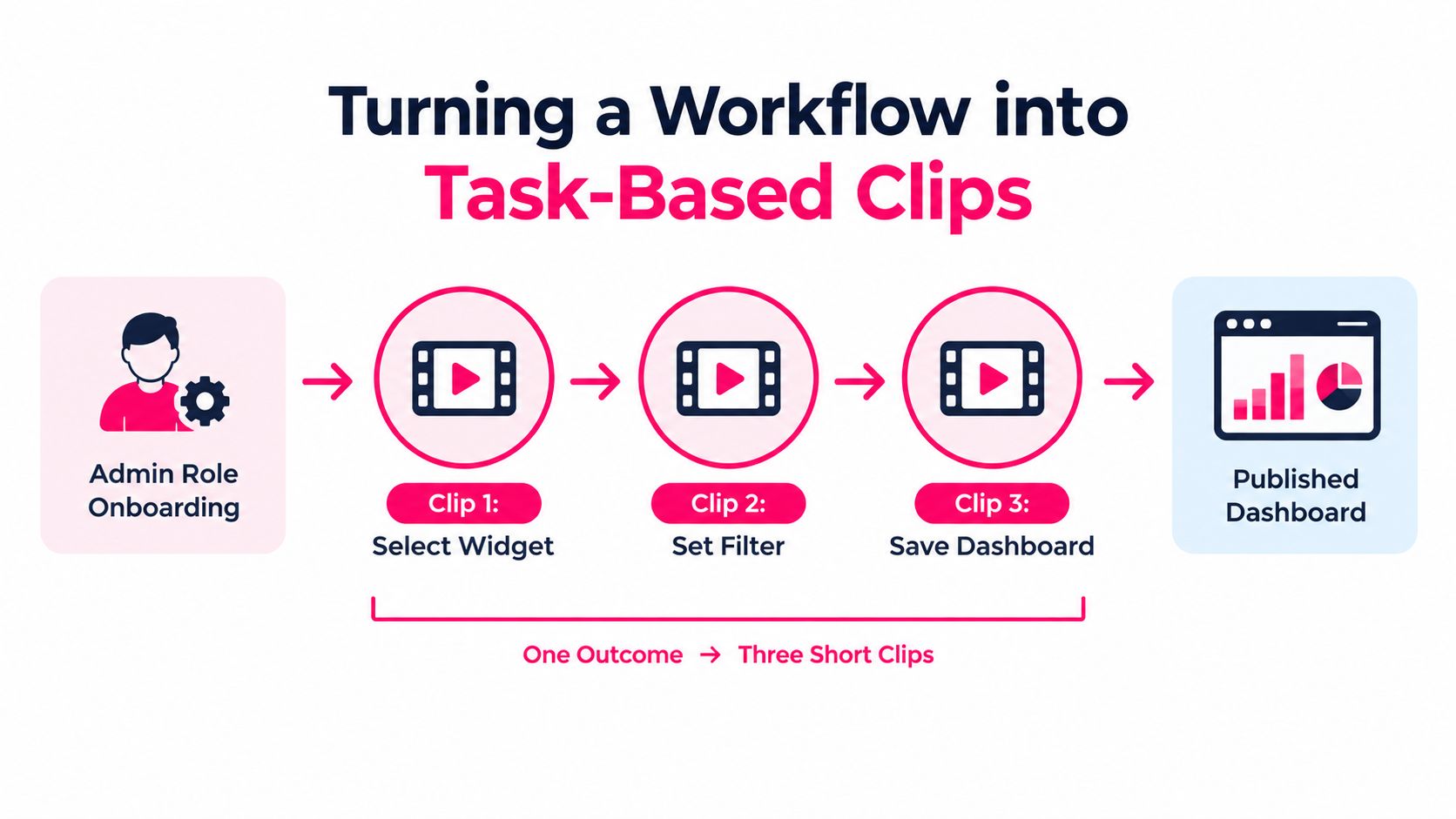
A SaaS administrator needs to publish a new dashboard for a regional sales team. The outcome sounds like one topic, but “publish a dashboard” hides several actions, decisions, and possible errors. Recording the entire process as one uninterrupted walkthrough would make the learner hunt through a long video later.
Start with the outcome, then map the workflow:
1. Select the widget: Open the dashboard builder and choose the pipeline widget. 2. Set the filter: Apply the region and opportunity-status conditions. 3. Save the dashboard: Name it, choose the audience, and publish it.
Each clip should have a defined entry state, a single meaningful action, and a visible result. “Select the widget” begins with the dashboard builder open and ends with the correct widget displayed. “Set the filter” begins with that widget selected and ends with the filtered data visible. “Save the dashboard” begins with the completed view and ends with the dashboard available to the intended audience.
Map decisions and recovery paths
The happy path isn't the whole job aid. Ask the administrator what happens when the widget isn't available, the filter returns no data, or the user lacks permission to publish. Those are not side notes. They're the moments when a learner is most likely to abandon the task or contact support.
Use branching clips when the response changes based on a decision:
- Permission error: Stop and route the learner to the access request process.
- Empty result: Check the date range and region before changing the report logic.
- Wrong audience: Return to sharing settings and select the approved group.
- Successful publication: Verify the dashboard from the viewer role.
A linear walkthrough is efficient for a predictable procedure. Branching content is better when role, permission, data state, or risk changes the next action. The trade-off is production effort, so branch only where the decision affects task completion.
The same decomposition helps teams creating video ads for performance marketers, where a broad campaign outcome also needs to become a sequence of purposeful creative actions. In training, the equivalent is to treat every clip as a reusable unit with a precise job, not as a chapter cut from a long recording.
Before recording, check the boundaries:
- Entry point: Can the learner start from a recognisable screen or state?
- Single action: Does the clip teach one meaningful action rather than a collection of clicks?
- Visible result: Can the learner see whether the action worked?
- Error state: Is there a separate clip or instruction for the most likely failure?
- Reuse: Can you update this clip without rebuilding adjacent workflow content?
- Search phrase: Does the title match the words a learner or support agent would use?
Producing and Publishing Videos at Speed
Speed comes from removing avoidable decisions, not from skipping review. Build a repeatable pipeline that separates instructional accuracy from production polish.
Begin with a source of truth. Ask the process owner for the current workflow, approved terminology, permissions model, and known exceptions. Use AI to turn that material into a draft objective, script, scene list, and knowledge-check prompt. An AI draft is a starting point, not an authority. The SME must verify every label, condition, and sequence against the current interface.
Use templates for repeatable work
Create a recording template with the same canvas, cursor treatment, intro card, caption style, callout colour, outro, and file naming pattern. Tools such as Camtasia and Descript can support screen capture, editing, transcript-based cleanup, and reusable layouts. Platforms such as VideoLearningAI can turn scripts and course materials into structured training videos, while also accommodating screen recordings for software walkthroughs.
Record in batches when the interface, account, and subject matter expert are already available. Batch capture reduces setup overhead and makes a release more coherent. Use on-demand recording when a workflow is changing quickly or a help desk needs an urgent job aid. A fast inaccurate clip creates more support work than it removes.
| Approach | Typical Turnaround | Best For | Main Trade-Off | |---|---|---|---| | On-demand expert recording | Fast | Urgent fixes and narrow procedures | Inconsistent audio, structure, or terminology | | Batch screen capture | Fast after preparation | Feature rollouts and role libraries | Requires stronger upfront scripting | | AI-assisted draft and template edit | Fast for repeatable content | High-volume updates and standardised lessons | Needs human review for accuracy and tone | | Studio or polished production | Slower | Change narratives and high-visibility programmes | Higher coordination and revision cost |
Add review gates before release
Use three short gates. First, the process owner checks that the workflow is correct. Next, an L&D reviewer checks that the objective, pacing, callouts, and practice prompt support the task. Finally, an accessibility and compliance reviewer checks captions, sensitive data, permissions, and any regulated wording.
For a more detailed production workflow, see this guide to automated video production. The tool matters less than the handoff discipline. Every reviewer should know what they are approving and where to record changes.
Before publishing, confirm:
- Captions: Correct names, field labels, punctuation, and speaker changes.
- Version: Product name, workflow version, owner, and review date are recorded.
- Filename: Role, task, system, and version use a consistent pattern.
- Thumbnail: The task title is readable without relying on tiny interface text.
- Access: The audience can open the video from the location where it is linked.
- Privacy: Personal, customer, financial, or test data isn't exposed.
- Search: Title, description, transcript, tags, and related SOP use the same vocabulary.
LMS, Standards, and Accessibility Essentials
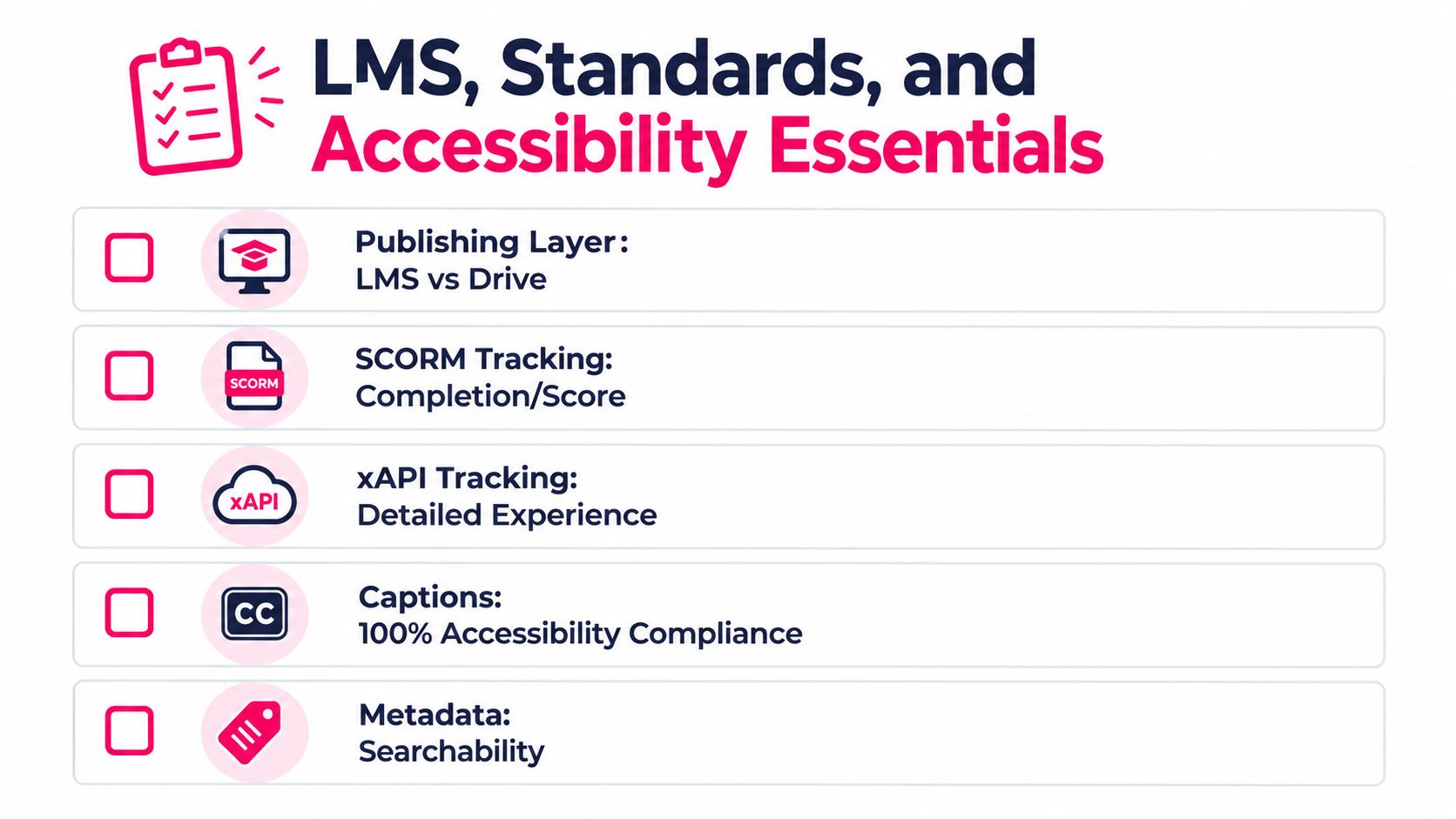
Publishing determines what your organisation can learn about learning. A shared drive or knowledge base is often the quickest place to distribute a job aid, but it usually treats the video as a file or link. An LMS can assign the resource, connect it to a course, restrict access by role, and report completion according to its configuration.
SCORM is useful when you need a packaged learning object that communicates completion, status, and sometimes score information to an LMS. xAPI is better suited to detailed experience records across different environments, such as a video viewed from a knowledge base followed by a practice action in a sandbox. Choose the standard based on the question your stakeholders need answered, not because one format sounds more advanced.
Make access part of production
Captions are essential for learners who are deaf or hard of hearing, but they also help people working in noisy offices, shared spaces, or environments where audio isn't practical. Review automated captions manually. Software names, acronyms, names of fields, and commands are frequent sources of errors.
If your programme includes live delivery or real-time support, this explanation of how real-time closed captioning works provides useful context for the captioning process. For recorded software training videos, keep the transcript aligned with the final cut and make it downloadable or searchable when the platform allows it.
Keyboard access matters when the video sits inside an interactive lesson. Learners should be able to reach controls, start and pause playback, activate questions, and submit responses without relying only on a mouse. Don't place essential instructions in colour alone. Use labels, icons, position, and text so a learner can distinguish warnings, required fields, and successful states.
The video accessibility guidelines for training content can help teams turn these principles into a production checklist. Keep on-screen text large enough to read at the expected viewing size, use sufficient contrast, and avoid flashing or decorative movement that distracts from the workflow.
Standardise the library
Metadata keeps a growing collection usable. At minimum, record the system, role, task, workflow stage, audience, owner, version, review date, transcript status, language, and related procedure. Add the common learner question as a keyword. “How do I reassign a ticket?” is more useful for search than a vague title such as “Service desk basics.”
Don't publish duplicate versions in different folders without a clear retirement rule. One current source, one owner, and one visible status prevent learners from following an obsolete path.
Your Next 30 Days of Software Training Video Work
A practical rollout starts with demand, not a catalogue. For the first week, interview help desk staff, managers, new hires, and process owners. Inventory the tasks that generate repeated questions or create operational risk. Score each task by frequency, consequence of error, role coverage, and interface stability, then select the first three that are both valuable and teachable.
Week two is the design sprint. Write one outcome per task in the form, “After watching, this role can complete this action in this context.” Draft the script, storyboard the screens, identify the success state, and list the likely error. Send the draft to the SME for a focused review. Ask, “Is this the approved workflow?” before asking whether the narration sounds polished.
Week three is production. Record the three workflows using the same screen and audio setup. Use an AI-assisted draft for narration or lesson structure where it saves time, then verify it against the interface. Apply the recording template, remove dead space, add captions and callouts, and run the quality checklist before the final SME sign-off.
Week four is publishing and adoption. Upload the clips to the agreed LMS or knowledge base, package them for the required tracking standard, apply consistent filenames and thumbnails, and connect each video to the relevant SOP or help article. Give managers a short launch message that names the task each clip supports and tells them where to send feedback.
Decide what to build and refresh
Build a video when the learner needs to see a sequence, the task recurs, and the interface is stable enough to justify capture. Use written guidance instead when the content is mostly policy, definitions, or a detailed exception list. Add simulation or instructor support when the learner must make consequential decisions rather than copy a fixed path.
Refresh a clip when the interface, permissions, policy, or expected result changes. Retire it when the task no longer exists or the organisation has replaced the system. Keep a simple owner and review date for every asset, then use learner questions and support tickets to prioritise the next production cycle.
By the end of the first month, you don't need a giant video library. You need a small set of trustworthy job aids that people can find, follow, and apply during real work. That evidence should determine what you produce next.
---
VideoLearningAI turns scripts, lesson plans, and existing course materials into structured training videos, with templates for microlearning and support for screen recordings in software walkthroughs. Visit VideoLearningAI to create a focused first job aid and build a repeatable production workflow for your next rollout.