You've just inherited a training library that grew faster than its production standards. A compliance course sits in the LMS with a polished presenter, clean slides, and a completion report that looks fine. Then a learner turns on captions and finds missing terminology, a keyboard user can't reach the player controls, and a demonstration depends on visual instructions that never appear in the audio.
That situation is common because accessibility problems rarely begin with bad intentions. They begin with rushed launches, auto-generated captions that nobody reviews, vendors that export inaccessible players, and uncertainty about who owns the final check. Video accessibility guidelines turn that uncertainty into decisions your L&D team can build into intake, production, quality assurance, and LMS publishing.
Table of Contents
- What the levels mean in production - Captions that carry meaning - Description and transcript alternatives - The player and the surrounding structure - Stage one starts before recording - Stage two protects the source material - Stage three is assisted post-production - Caption review - Description and transcript review - Player and metadata review - Protect the package - Test the wrapped experienceThe Moment Accessibility Stops Being Optional
An L&D director at a mid-sized employer discovers during a routine accessibility audit that much of the training library lacks captions and audio description. The team has delivered onboarding, compliance, and product training for years, but nobody owns accessibility across the full workflow. The studio assumes the LMS handles it. The LMS administrator assumes the vendor supplied compliant files. The vendor points to an automatic caption toggle.
The audit exposes the problem: the organization has features in places, but it doesn't have a dependable process. A caption track may exist, yet contain incorrect product names. A transcript may be available, yet omit the visual steps that explain a software demonstration. A video player may work with a mouse, yet trap a learner who uses a keyboard.
> Practical rule: Treat accessibility as a production requirement, not a post-production rescue task.
That shift matters because legal frameworks and procurement reviews increasingly expect organizations to show how digital content works for people with disabilities. The W3C media accessibility guidance emphasizes that an accessible experience includes more than captions. It also involves transcripts, audio description, sign language where needed, and a player people can operate.
For a corporate L&D team, the working question isn't whether a video has captions. It's whether a learner can hear, see, search, control, and understand the lesson through the LMS that serves it.
The practical route forward is straightforward. Establish the WCAG requirements, map them to the legal and procurement environments your organization faces, assign ownership at each production stage, and test the final LMS experience rather than trusting the source file. That approach replaces audit panic with a repeatable publishing standard.
How WCAG Shapes Modern Video Accessibility
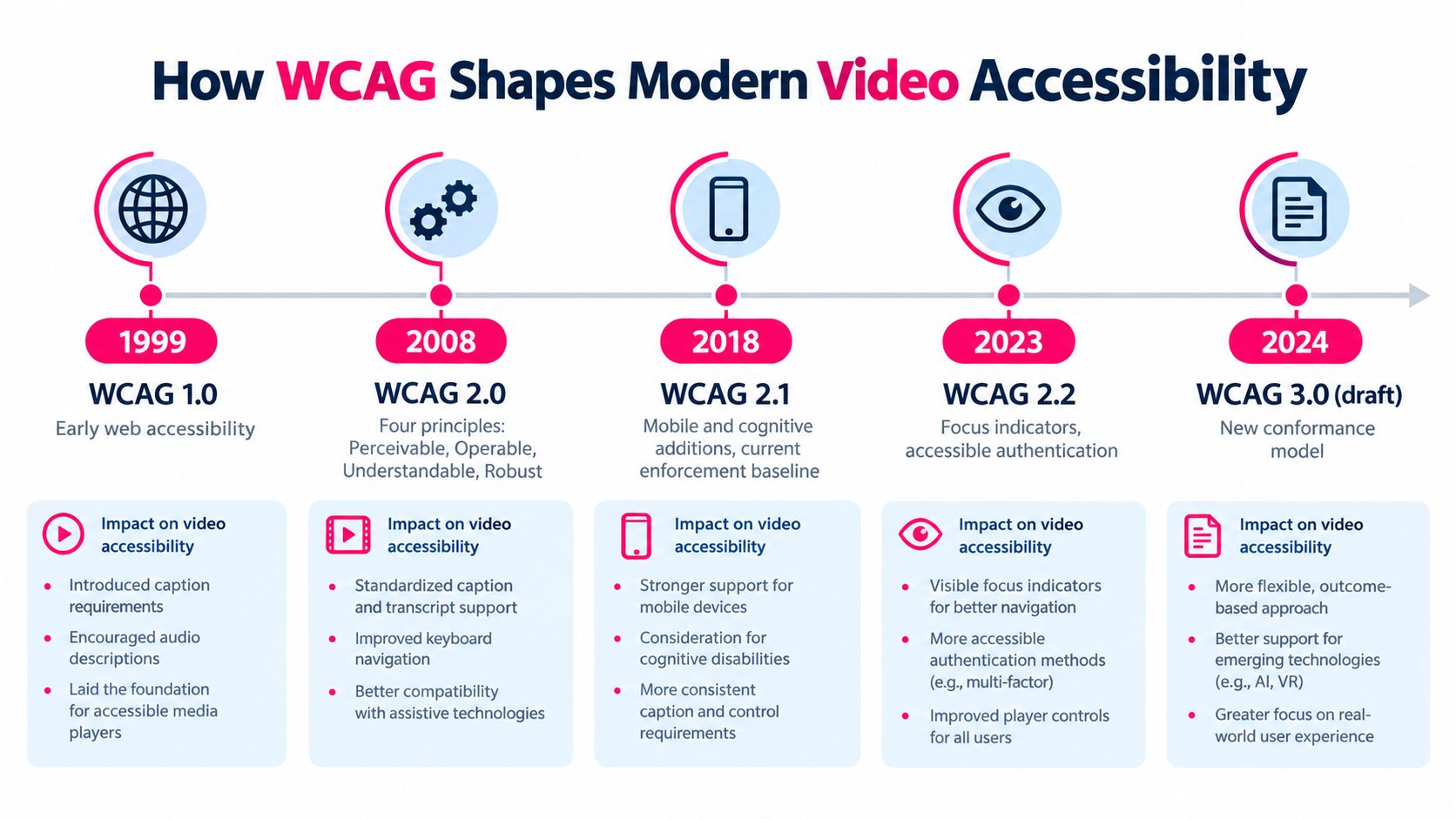
The Web Content Accessibility Guidelines provide the technical foundation organizations use to define an accessible digital experience. WCAG 1.0 was published on May 5, 1999, followed by WCAG 2.0 in December 2008, WCAG 2.1 in 2018, and WCAG 2.2 in October 2023, as documented in the WCAG 3.0 draft. The earlier versions remained relevant for more than 15 years, which shows why organizations still build durable media workflows around the core model.
The framework uses three conformance levels:
- Level A addresses baseline barriers. For prerecorded synchronized media, this includes synchronized captions.
- Level AA adds requirements that most corporate programs use as their operational target, including captions for live synchronized audio and audio description for prerecorded video with meaningful visuals.
- Level AAA sets more demanding outcomes, such as sign language interpretation for relevant media.
WCAG isn't a standalone video specification. Its success criteria sit within a broader system of principles and cover time-based media, contrast, keyboard access, focus behavior, and programmatic information. For video teams, the 1.2.x time-based media criteria are especially important, while player design also depends on operability and correctly exposed control names, roles, and values.
What the levels mean in production
A team shouldn't interpret Level AA as a declaration that every possible accessibility need has been solved. It's a practical baseline for deciding which deliverables belong in the standard release package.
For a training video with audio, that normally means synchronized captions, an accessible player, and audio description or an equivalent text alternative when meaningful visual information isn't available through the soundtrack. A video-only asset still needs an alternative that communicates its content.
The W3C planning guidance for audio and video maps requirements across video-only and video-with-audio content and shows how the A, AA, and AAA levels apply. This mapping is useful during production because it turns broad accessibility language into a reviewable checklist.
WCAG provides the technical rulebook. ADA obligations, Section 508 requirements, and European accessibility duties may apply in different ways, but L&D teams often use WCAG as the shared quality language when selecting vendors, writing statements of work, and approving LMS releases.
The Core Elements Every Accessible Video Needs
An accessible training video has four connected parts. Captions support the audio channel, description and transcripts support visual meaning, the player supports independent operation, and metadata helps learners and systems understand what the asset contains.
Captions that carry meaning
Subtitles usually focus on spoken dialogue. Captions must go further when learners need information from sound, including speaker identification, music, laughter, alarms, or meaningful sound effects. The W3C captions guidance explains that prerecorded synchronized audio requires captions at Level A, while live synchronized audio has a Level AA caption requirement.
A training example makes the distinction clear. “Click Save” may be enough as dialogue, but a caption such as “[alarm sounds]” can change how a safety lesson is understood. Auto-generated captions can create a useful first draft, but industry jargon, names, acronyms, and technical commands need human review. Teams working specifically on learner inclusion can also consult this guide to captions for deaf learners.
Description and transcript alternatives
Audio description narrates meaningful visual information that the main soundtrack doesn't communicate. It can cover an on-screen warning, a chart trend, a software action, a scene change, or text displayed only in a slide. The W3C explanation of prerecorded audio description notes that description belongs at Level AA when meaningful visuals aren't available through the existing audio.
A detailed transcript can be the more practical choice for L&D when the lesson is instructional and the visual sequence is easy to describe in text. If the original pauses are too short for narration, extended description may be necessary, which can affect runtime and editing. Choose the alternative based on how the learner uses the content, not on which file is easiest to export.
The player and the surrounding structure
A learner should be able to reach play, pause, seek, volume, captions, and full-screen controls with a keyboard. Focus must remain visible, labels must make sense to assistive technology, and controls should stay usable on smaller touchscreens. Burned-in captions can help someone watching a silent video, but they don't replace an accessible caption track that a player and assistive technology can interpret.
Use descriptive titles, language metadata, chapter markers, poster-image alternatives, and downloadable resources around the video. These details help learners locate the right lesson and recover when a player fails.
| Element | WCAG Criterion | Primary Audience | Production Standard | |---|---|---|---| | Captions | 1.2.2 and related media criteria | Deaf and hard-of-hearing learners, learners in quiet or noisy environments | Synchronized, complete, reviewed for terminology and sound cues | | Audio description | 1.2.5 for prerecorded video | Blind and low-vision learners | Narrates meaningful actions, text, and visual changes | | Transcript | Media alternative criteria | Learners using text, search, or a fallback format | Includes dialogue, relevant sound, and visual information | | Player controls | Keyboard and operability criteria | Keyboard and assistive-technology users | Reachable controls, visible focus, clear labels, reliable toggles | | Metadata and structure | Perceivable and robust content requirements | All learners and LMS users | Descriptive title, language, chapters, alternatives, and resources |
A useful design principle is that better access often improves the broader learner experience. Teams evaluating navigation, clarity, and interaction can use resources such as increase conversions with UX to connect accessibility decisions with wider usability practice.
Mapping WCAG to ADA, Section 508, and the EAA
L&D teams often treat WCAG and accessibility law as interchangeable. They aren't. WCAG is a technical standard, while the ADA, Section 508, and the European Accessibility Act create obligations in different legal and operational contexts.
| Framework | Legal Basis | WCAG Level | Video Requirements | Enforcement | |---|---|---|---|---| | WCAG | W3C technical guidance | A, AA, and AAA | Captions, alternatives, audio description, and operable media experiences | Conformance testing and procurement requirements | | ADA | U.S. civil-rights law | No single enumerated video level in the statute | Accessible communication and usable digital services, interpreted through applicable obligations | Complaints, agreements, litigation, and organizational policy | | Section 508 | U.S. federal accessibility requirements | Commonly aligned with WCAG requirements | Captions, descriptions, transcripts, keyboard access, and compatible technology | Federal procurement and agency compliance | | EAA | European accessibility legislation | Organizations commonly use WCAG as an implementation reference | Accessible digital products and services, supporting procurement and market obligations | National enforcement and market-surveillance mechanisms |
The ADA doesn't provide one neat video checklist. That's why teams often use WCAG to define what an accessible communication experience should contain. For additional context on the phrase ADA compliant meaning for websites, L&D leaders can separate legal applicability from the technical tests their teams run.
Consider a U.S. enterprise publishing a compliance course for staff in several regions. A single workflow may need captions, a transcript, described visual instruction, keyboard-compatible playback, and evidence that the LMS preserves those features. Running separate production tracks for every jurisdiction creates duplicated work and inconsistent learner experiences. A shared WCAG-aligned standard, supplemented by legal review for the organization's actual obligations, is easier to manage.
The evidence matters as much as the intention. Keep the script, caption review record, description decision, player test results, export package, and LMS verification with the release documentation.
Building a Production Workflow That Actually Holds Up
Accessibility becomes manageable when every stage produces an artifact someone can review. The following pipeline keeps responsibility visible without turning every video into a special project.
Stage one starts before recording
At intake, the instructional designer locks the learning objective, script, speaker list, visual references, language, and delivery format. The deliverable is a production brief that identifies whether the lesson depends on visual information. That decision determines whether the team needs audio description, a descriptive transcript, or both.
Before recording, the designer and subject-matter expert review slides, interface demonstrations, charts, colors, and on-screen text. They remove meaning that exists only through color or tiny text, and they write visual actions into the narration where possible. This takes less effort than reconstructing visual meaning after the edit is complete.
Stage two protects the source material
The producer records clean speech with clear speaker turns and avoids talking over demonstrations. A caption-ready recording makes later timing and speaker identification easier. The owner is the producer, while the accessibility reviewer checks that the planned visual information can be understood through audio or an alternative.
At this point, tools can reduce repetitive preparation. VideoLearningAI can turn existing training material into structured training videos and support caption and visual generation, while the instructional designer remains responsible for deciding whether the result accurately teaches the objective.
Stage three is assisted post-production
The editor creates an automatic caption draft, aligns it to speech, adds speaker labels and non-speech cues, and prepares a transcript or description track. The human reviewer then checks terminology, timing, punctuation, visual references, and safety instructions. AI can accelerate the first pass, but it can't assume responsibility for a compliance statement or a technical command.
The final stage exports the video, caption files, transcript, description assets, metadata, and accessibility test record. The LMS owner confirms that the package works after ingestion. Teams can use the training video production workflow as a reference point when formalizing responsibilities and handoffs.
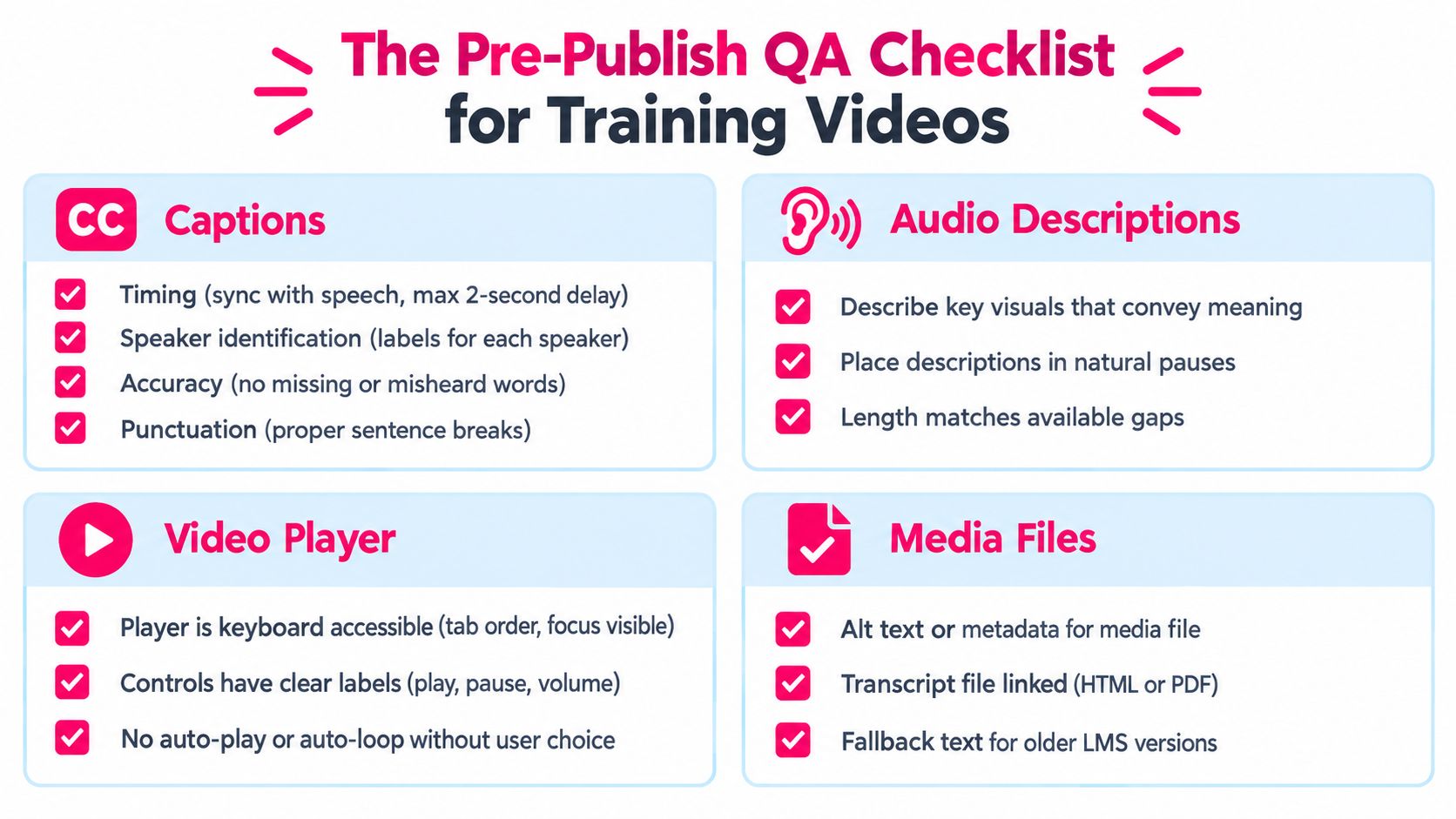
The Pre-Publish QA Checklist for Training Videos
A final review should answer one practical question: Can the intended learner complete the lesson without losing essential information or control? Run the check in the actual player and LMS rendition, not only in the editing application.
Caption review
- Timing: Captions stay synchronized with speech and don't obscure essential interface content.
- Completeness: Dialogue, speaker changes, meaningful sound effects, music, laughter, and other necessary audio appear.
- Terminology: Product names, acronyms, commands, and safety language match the approved script.
- Readability: Lines break naturally, punctuation supports comprehension, and the display remains usable on the target screen.
- Controls: The caption toggle works, remains discoverable, and doesn't disappear after seeking or replaying.
Description and transcript review
- Visual meaning: The description covers actions, text, charts, demonstrations, and scene changes that affect the lesson.
- Timing: Descriptions fit naturally into available pauses or use an appropriate extended format.
- Coverage: The transcript includes the instructional content, relevant audio, and visual information.
- Fallback: A downloadable or linked transcript remains available if the player track fails.
- Integration: The description or transcript is easy to locate from the lesson interface.
Player and metadata review
- Keyboard path: A reviewer can reach every essential control with the keyboard.
- Focus state: The active control is clearly visible throughout playback.
- Labels: Play, pause, seek, volume, captions, and full-screen controls have understandable names.
- Media information: The title, language, poster alternative, chapters, and supporting resources are descriptive.
- LMS behavior: The published rendition exposes the same tracks and controls as the source.
Use three outcomes: ship, revise, or reject. A missing caption track, inaccessible player control, or absent alternative for meaningful visuals should block release. Minor styling issues can enter a remediation queue only when they don't remove essential learning information or control.
Publishing Accessible Video to Your LMS Without Breaking It
The source file can be accessible and the LMS version can still fail. Packaging, ingestion, player wrappers, and security settings may alter the way captions, transcripts, and controls behave.
Protect the package
For SCORM or xAPI delivery, keep the video, caption files, description assets, transcript, and metadata paths intact. Relative paths must continue to resolve after the package is uploaded. If the LMS uses a hosted video player instead, confirm whether captions are embedded in the platform or uploaded as sidecar files such as SRT or WebVTT.
Native caption tracks are generally easier for an HTML5 player to expose than captions burned directly into the picture. Burned-in text remains visible, but it doesn't provide a switchable, machine-readable track. Ask the LMS administrator which format the platform accepts and whether it preserves cue timing during ingestion.
Test the wrapped experience
Preview the course as a learner, then run a short verification routine:
1. Open the module without a mouse and tab through the player. 2. Confirm the focus indicator is visible and the order makes sense. 3. Turn captions on, seek forward, pause, replay, and confirm they remain available. 4. Check that volume works independently from system settings. 5. Open the transcript and verify that it matches the approved version. 6. Test the description track or alternative on the target player. 7. Inspect the package on the LMS environments your audience uses. 8. Confirm the completion signal still works after the learner uses the accessibility features.
Common failures include stripped WebVTT cues, missing transcript attachments, broken relative paths, and controls that disappear when the LMS adds its own player layer. The LMS video publishing guidance can help teams document the handoff instead of treating the upload as the end of production.
From Compliance Checkbox to Training Advantage
Accessibility work improves the instructional product because it forces teams to make meaning explicit. Captions give learners a text channel for dialogue and sound. Transcripts support review and search. Clear controls reduce friction for people using keyboards, mobile devices, or assistive technology.
The business case is also practical. Employees may watch without sound, work in environments where audio is disruptive, use a second language, or need to revisit a precise instruction. A transcript and well-structured metadata make that return visit easier, while a clean player removes avoidable barriers from the lesson itself.
Use the first month to create momentum:
- Audit priority content: Start with high-use onboarding, compliance, safety, and customer-facing modules.
- Retrofit systematically: Generate initial caption and transcript drafts, then assign human review before publishing.
- Name an owner: Give one L&D role responsibility for standards, evidence, vendor requirements, and release approval.
- Fix the LMS path: Test the player, package, controls, and fallback files where learners consume the course.
As European accessibility enforcement matures and procurement teams add accessibility clauses to vendor contracts, documented capability will matter earlier in the buying and publishing process. Teams that build the workflow now can improve quality while avoiding a rushed library-wide remediation effort later.
---
VideoLearningAI helps educators and corporate training teams turn existing materials into structured training videos while supporting a faster first pass for captions, visuals, and LMS-ready workflows. Visit VideoLearningAI to evaluate how it can fit into your accessible video production and publishing process.