A training lead receives a policy update, a revised product process, or a new safety procedure and immediately faces the same practical problem: the source material is ready, but the learning asset isn't. A document may be accurate, yet employees need a short video they can pause, skim, replay, and understand in a noisy office or with the sound turned off.
That's where text on video software earns its place. It can add captions, subtitles, speaker labels, keywords, instructions, and visual callouts to moving images. For L&D teams, though, the key question isn't just whether a platform can put words on screen. The bigger question is whether it can support a repeatable, accessible, governed workflow from source script to LMS publication.
Table of Contents
- Text becomes part of the learning design - The main text layers - Why the distinction affects buying decisions - Start with an approved source - Assemble and review in layers - Export, audit, and publish- Subtitles, Captions, and Animated Overlays Compared
- Selection Criteria for Corporate Learning and Development
- Common Misconceptions About Text on Video Software
- How an AI Video Platform Fits the Text on Video Workflow
Why Text on Video Software Matters for Modern Training Teams
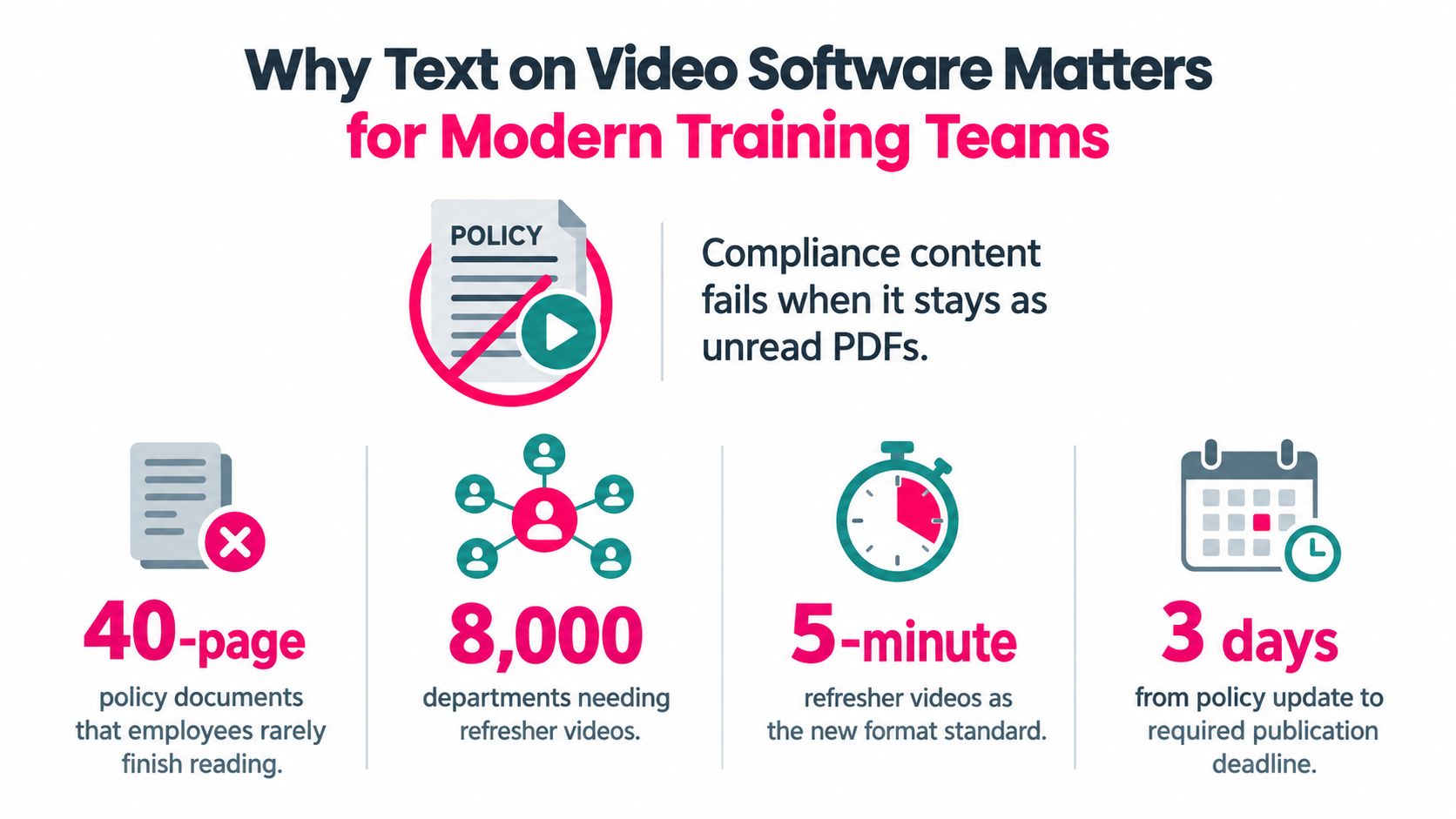
A compliance team might begin with a dense policy document and end with a set of short refresher videos. The work between those two points involves more than recording narration. Someone must decide which ideas deserve emphasis, where a definition appears, how a procedure is shown, whether captions are accurate, and how the final assets will be reviewed and published.
Text overlays make that transformation practical. A trainer can turn a paragraph about data handling into a sequence that shows the rule, highlights the prohibited action, and presents the correct response. A manager watching on a phone can read the key instruction without searching through a long document. A learner who misses a phrase can replay the scene or use a transcript rather than abandoning the lesson.
The accessibility case is equally important. Industry reporting says more than 70% of digital video is viewed on mute, which makes readable on-screen communication useful far beyond formal accessibility scenarios. Captioning market reporting also describes captioning as a high-volume production requirement, not a niche add-on. In training, that means the text layer should be planned alongside the learning objective, not added as an afterthought.
Text becomes part of the learning design
A caption can provide access to spoken dialogue. A keyword overlay can direct attention to the concept that matters most. A lower third can identify a speaker or define a term without interrupting the narration. These elements serve different instructional purposes, and combining them carelessly can create visual competition.
For example, a product training video might use captions for the complete narration, a short overlay for “Verify customer identity,” and a lower third identifying the subject matter expert. Those layers can coexist if they have distinct positions, timing, and visual treatment. If every sentence also appears as a large animated headline, learners may spend more effort reading than observing the product demonstration.
The commercial market reflects this shift toward software-led production. The captioning and subtitling solutions market report estimates a global market of about USD 6.7 billion in 2025, projected to reach roughly USD 16.3 billion by 2035, with a 9.4% CAGR. The same report says software represented 62.7% of 2025 revenue, while cloud-based solutions generated USD 4.5 billion, pointing to collaborative, internet-delivered workflows.
For L&D, that market direction matters because text-on-video software now sits between instructional design, accessibility, content governance, and distribution. A tool that creates attractive overlays but can't preserve approved wording, export usable caption files, or support review may solve the visible part of the problem while creating operational risk elsewhere.
What Text on Video Software Actually Does
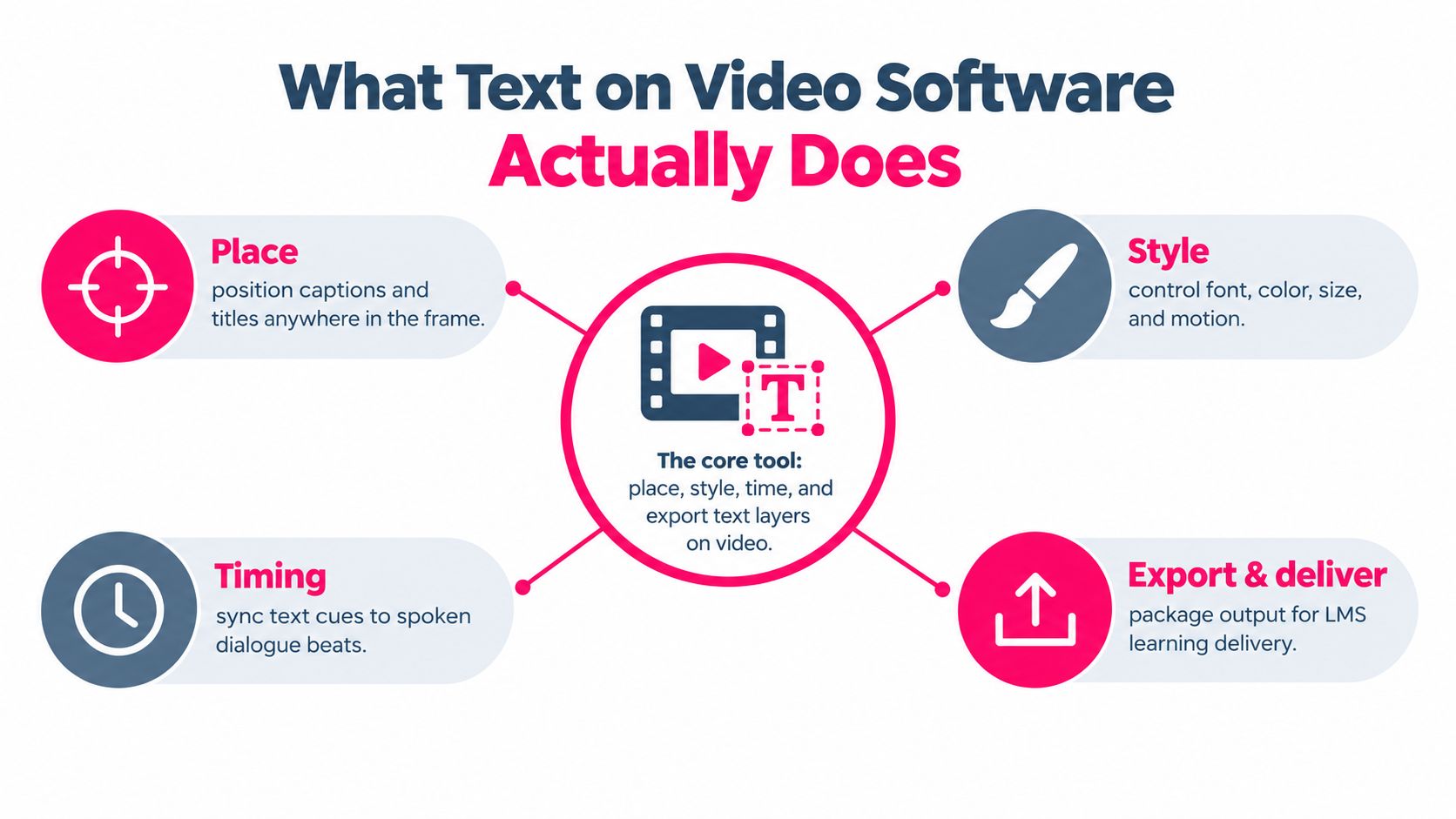
At its simplest, text on video software lets a user place, style, time, and export written layers on top of moving images. The text may come from a transcript, a script, a document, or a manually written cue. The editor then controls when it appears, how long it remains visible, where it sits in the frame, and how it looks.
That definition includes several different text types. Treating them as interchangeable is one of the first buying mistakes teams make.
The main text layers
- Subtitles translate or reproduce spoken dialogue. A training team might add a Spanish subtitle track to an English onboarding video, allowing the same footage to serve another audience.
- Captions usually communicate dialogue and relevant audio information for people who can't hear the track or choose not to use sound. They need accurate synchronization and readable presentation.
- Lower thirds identify a speaker, department, product, or location. A compliance video might show “Information Security, Policy Owner” when an expert begins speaking.
- Animated keywords emphasize a concept at the moment it matters. During a customer-service lesson, “Confirm, clarify, resolve” could appear as three separate cues.
- Title cards and templates establish the beginning of a lesson, section breaks, warnings, and closing actions. They help a team produce a recognizable series rather than a collection of unrelated clips.
Most platforms provide a timeline in which text behaves like its own media object. That object has a start time, duration, position, formatting, and sometimes an animation path. A transcription-first tool may create a caption draft from speech, while a template-first tool may ask the user to supply text for predefined layouts.
Why the distinction affects buying decisions
A subtitle track may be switchable in a player. A burned-in overlay becomes part of the video image. A caption file can support accessibility and translation workflows, while a decorative keyword animation may need to be recreated for every language. Those differences affect localization effort, quality review, and how well the asset works in an LMS.
A team exploring the wider creative category can browse text to video articles to see how text-led production is being applied beyond traditional captioning. For corporate training, however, visual novelty shouldn't drive the decision. Start with the learning task. Ask whether the learner needs a transcript, a translation, a visual prompt, a speaker label, or a combination that has been deliberately designed.
The strongest systems let teams keep these layers separate until the final delivery decision. That gives an instructional designer more control when legal changes one sentence, accessibility reviewers request a different caption treatment, or localization teams need to replace the text without rebuilding the entire video.
The Core Workflow From Script to Published Training Video
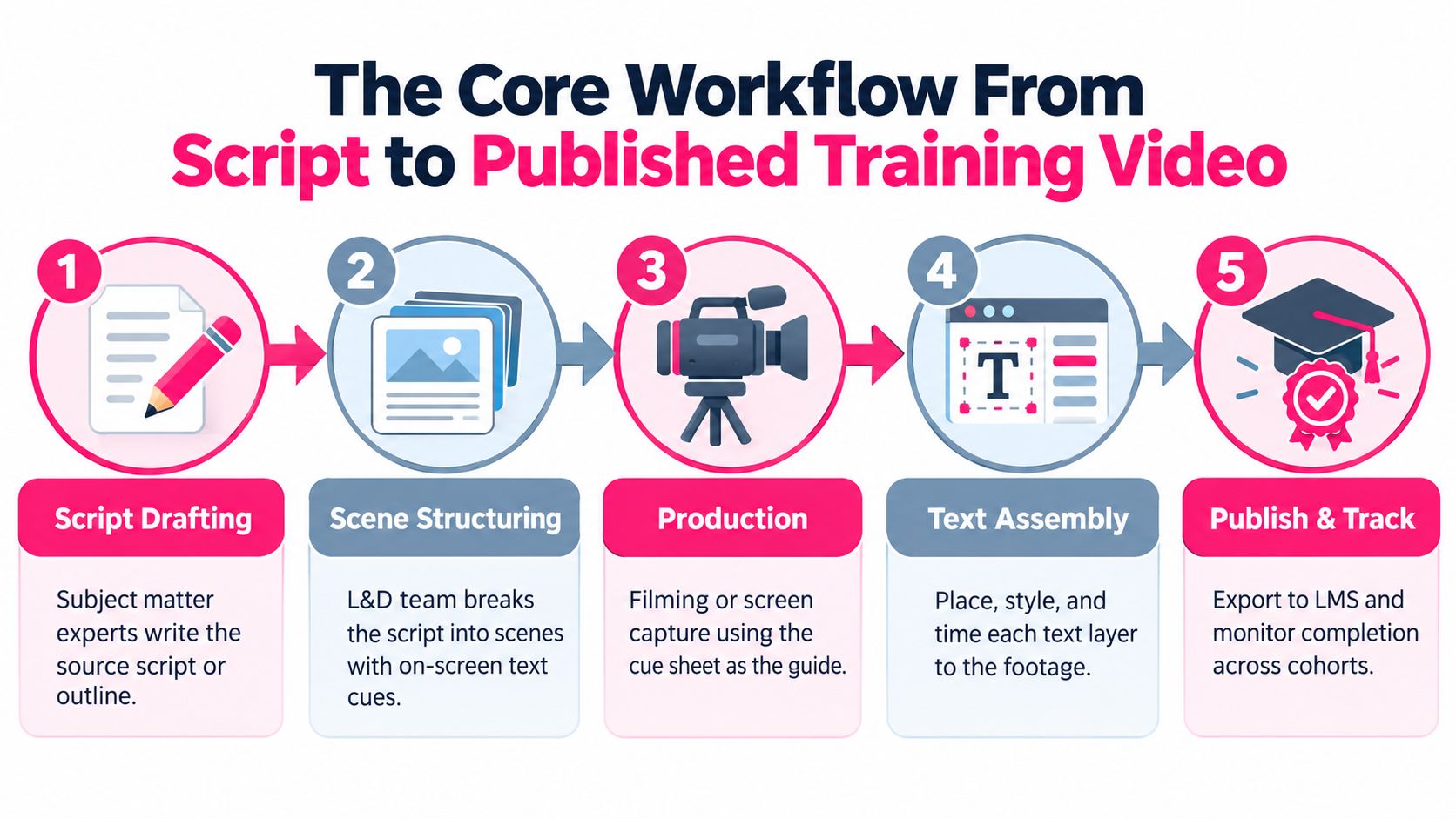
A dependable workflow starts before anyone opens the video editor. The subject matter expert provides the approved source material, and the L&D team turns it into a learning sequence with clear scenes, narration, visuals, and text cues.
Start with an approved source
The script should identify more than spoken words. It should indicate definitions, warnings, screen actions, examples, and any phrase that must appear exactly as approved. A scene cue might read:
> On-screen cue: Display “Escalate suspected fraud” while the narrator explains the escalation path.
That cue gives the video editor and reviewer a shared reference. It also separates instructional intent from production preference. If the legal team later changes “report within one business day” to approved wording, the team can locate the affected text layer without guessing which visual scene contains it.
Assemble and review in layers
After filming or screen capture, the editor imports the footage and builds the text layers. Captions should be synchronized with speech, while overlays should be timed to the relevant visual or instructional beat. Reviewers then comment against specific moments, rather than exchanging vague feedback such as “the middle section feels unclear.”
A useful review pass checks four things:
1. Meaning: Does the text preserve the approved instruction, terminology, and names? 2. Timing: Can learners read it before the scene changes? 3. Visibility: Does contrast, placement, and size work across expected screens? 4. Purpose: Does each overlay help the learner, or is it merely decorative?
Auto-generated speech-to-text should be treated as a draft. An analysis of 68 minutes of classroom video found 525 phrase-level errors, averaging 7.7 phrase errors per minute, and concluded that automatic captions shouldn't be used exclusively. The classroom captioning analysis supports a quality process that includes human review, terminology correction, and timestamp inspection.
Export, audit, and publish
A final delivery may include the rendered video, a caption file, a transcript, a thumbnail, and metadata. The team should know which elements are burned into the image and which remain selectable or replaceable in the LMS player.
Keep a version note for every approved change. Record the source document, reviewer, date, changed phrase, and affected asset. That audit trail becomes valuable when a policy changes or an employee challenges the wording of a required lesson.
For a broader look at converting written material into video, see this guide to a script to video generator. The principle is the same whether production is manual or assisted by AI: control the source, separate the layers, review the output, and publish a traceable version.
Subtitles, Captions, and Animated Overlays Compared
Corporate trainers usually choose among three approaches, although a single lesson may use all three. The right choice depends on whether the priority is translation, access to spoken content, or directing attention to a learning action.
Subtitles are often the simplest option. They work well when the narration is clear and the team needs another language or a sound-off viewing experience. Because subtitles generally follow dialogue, they can be easier to localize than a heavily designed set of animated callouts. They don't automatically address every accessibility requirement, particularly when meaningful non-speech audio or speaker changes need to be communicated.
Captions are the stronger choice when accessibility and complete audio representation matter. They can include dialogue, speaker identification, and relevant sounds. They also support learners who work in shared spaces or who prefer reading while listening. Human review remains essential, especially for technical vocabulary and regulated content.
Animated overlays include keywords, warnings, labels, callouts, and procedural steps. They can support microlearning when they appear at the moment a learner must notice or remember something. They become a problem when every spoken sentence receives a competing visual treatment.
| Approach | Best Use | Accessibility | Production Speed | LMS Fit | |---|---|---|---|---| | Subtitles | Translation and sound-off viewing | Useful, but coverage depends on the content and format | Usually fast once the transcript is approved | Strong when delivered as selectable tracks | | Captions | Accessible playback and complete audio support | Stronger when accurately synchronized and reviewed | Moderate, because timing and context require checking | Strong when the player supports caption files | | Animated overlays | Definitions, warnings, labels, and microlearning cues | Supports comprehension, but doesn't replace full captions | Variable, depending on templates and motion design | Reliable when rendered into the video, less flexible for localization |
Teams working with livestreams or creator-style content may find practical production ideas in this guide to an auto subtitle generator for streamers. Corporate L&D teams should still test the result against their own terminology and accessibility standards.
A useful rule is to keep one dominant text purpose in each moment. If the learner must read a caption, identify a button, and absorb a large animated definition at the same time, the design has created a prioritization problem. Guidance on how to add subtitles to videos can help with the mechanics, but instructional judgment determines which text belongs on screen.
Selection Criteria for Corporate Learning and Development
A vendor demonstration should show the complete path from approved script to tracked learning asset. Don't score a platform only on how attractive its sample templates look. Ask the vendor to demonstrate a real training scenario involving a terminology change, an accessibility review, a second language, and LMS delivery.
Compatibility comes before visual polish
Confirm whether the platform supports the standards and identity controls your organization already uses. That may include SCORM 1.2, SCORM 2004, xAPI, cmi5, and SSO, along with clear completion and scoring events. A video that looks good but produces unreliable learner records will create work for the LMS administrator.
Then examine brand control. Can an administrator lock approved fonts, colors, logo placement, and safe areas? Can a designer create templates that other users can reuse without changing the visual system? Template governance matters when many subject matter experts produce content independently.
Accessibility and localization need a real test
Ask the vendor to show caption editing, transcript export, language tracks, and right-to-left support. Test long words, speaker changes, technical acronyms, and a scene with a chart or software interface. Verify that text remains legible without covering the content the learner needs to see.
Independent accessibility guidance warns that AI captions still require human editing for accuracy, context, speaker identification, and punctuation. The captioning software guidance for e-learning also places caption verification within the broader accessibility workflow, rather than treating automatic transcription as a finished deliverable.
Review the operating model
Collaboration features should support actual L&D work, not just provide a shared folder. Look for script import, timecoded comments, approval states, version history, and clear ownership. Ask what happens when a reviewer changes one sentence after narration and overlays are already complete.
Speed and scale deserve a workflow demonstration. Can the team generate multiple assets from a structured source? Can it reuse a template? Is there an API for approved, repeatable processes? Can administrators restrict who publishes content?
Use this checklist during a demo:
- Delivery: Can the output enter our LMS and produce the completion data we need?
- Governance: Can we preserve approved scripts, review decisions, and version history?
- Accessibility: Can a reviewer inspect and correct captions before release?
- Localization: Can we replace text and tracks without rebuilding every scene?
- Scale: Can the team reuse templates and process a growing library without losing quality?
- Security: Are SSO, data residency, permissions, and audit logging appropriate for our content?
Teams comparing transcription workflows can choose video transcription software as part of the discovery process. For a training-specific comparison, review how training video software fits into your existing authoring and publishing environment rather than assessing it as an isolated editor.
Common Misconceptions About Text on Video Software
Myth one, captions always improve learning. Captions can improve access, support sound-off viewing, and help people who process a second language. They aren't a universal learning booster, particularly when they duplicate narration and compete with a diagram, software demonstration, or physical procedure.
One study of instructional video tutorials found that captions didn't significantly improve retention or transfer, and some comparisons produced lower scores for the caption group. The study on captions and instructional video learning is consistent with a redundancy tradeoff. For compliance, provide accurate captions. For a complex demonstration, consider shorter keyword support alongside an accessible transcript.
Myth two, automated captions and translation are ready without review. A transcription engine can give an editor a useful starting point, but it can misrecognize names, acronyms, product terms, and regulatory language. Translation introduces another review requirement, because a fluent-sounding sentence can still alter the meaning of an approved policy.
A practical workflow assigns a human reviewer to terminology and timing. The reviewer should compare the output against the source script, not merely scan for obvious spelling errors.
Myth three, more text creates better retention. A learner can't prioritize five competing messages just because a platform can animate them. Put the complete spoken content in the caption layer when access requires it, then reserve prominent overlays for the one action, distinction, or term the learner must notice at that moment.
The most reliable habits are straightforward:
- Use one purpose per overlay: Don't make a keyword, warning, subtitle, and callout compete for the same space.
- Review high-risk language: Names, numbers, legal terms, medical terms, and product commands need human confirmation.
- Control the source: Update the approved script first, then regenerate or revise dependent text layers.
How an AI Video Platform Fits the Text on Video Workflow
An AI-driven training video platform fits best when the team treats it as a production layer inside a governed process. The user begins with a topic, script, document, or lesson material, then chooses a format, host, voice, and visual style. The system can turn that source into a structured video with narration, visuals, captions, and text overlays.
That workflow is useful for short onboarding lessons, compliance refreshers, product explanations, and customer education. A template can establish consistent lower thirds, title cards, caption placement, and callouts, while the instructional designer focuses on the accuracy and sequence of the lesson.
The human review point remains central
AI assistance can accelerate drafting, but it shouldn't decide whether a policy statement is correct. A training lead should review the generated script against the approved source, inspect captions for terminology, and check whether visual text supports the intended learning outcome.
The platform's text layers can also support localization when the team keeps written elements separate from the underlying visual structure. A translator or regional reviewer can work from the script and text layer rather than rebuilding the entire video. That approach is more practical for microlearning libraries, where the same instructional pattern may be reused across departments or markets.
The final test is delivery. The team should export a video and any available transcript or caption assets, place them in the target LMS, and confirm that playback, accessibility controls, completion tracking, and mobile viewing work as expected. A polished editor preview doesn't prove that the published learning experience is ready.
This workflow also clarifies where the tool shouldn't be used alone. High-risk content still needs subject matter review, accessibility review, and publication controls. The platform can reduce production friction, but governance determines whether the result is safe to release.
Choosing the Right Approach for Your Team in 2026
Start with the learning problem, not the software category. If learners need another language or a reliable sound-off option, subtitles may be sufficient. If the organization needs accessible playback and a complete representation of the audio, use reviewed captions. If the lesson requires attention to a procedure, definition, or warning, add restrained animated overlays.
Then assess the workflow around those layers. A small team producing occasional internal announcements may prioritize a simple editor and quick export. A distributed L&D function needs reusable templates, approval controls, source management, localization support, and dependable LMS packaging.
A short evaluation should answer five questions:
1. Volume: How often will the team create or update training videos? 2. Integration: Which LMS standards, identity controls, and reporting events are required? 3. Accessibility: Who reviews captions, transcripts, contrast, timing, and speaker identification? 4. Localization: Will the team need multiple language tracks or replacement text layers? 5. Reuse: Can approved layouts and terminology be reused without allowing uncontrolled design changes?
Run a pilot with one existing lesson rather than a hypothetical demo script. Choose content that includes narration, a screen demonstration, a policy phrase, and at least one accessibility requirement. Ask an instructional designer, subject matter expert, accessibility reviewer, and LMS administrator to evaluate the same output.
Measure completion and comprehension in ways that fit the lesson. A short refresher may need a knowledge check and an audit trail. A software procedure may need task success. The goal isn't to prove that text makes every video better. The goal is to determine whether the workflow helps learners access, understand, and apply the content while giving the organization confidence in what it published.
Audit your current video library for missing captions, overloaded overlays, inconsistent terminology, and assets that no longer match their source documents. Pilot one template-driven production path, document every review step, and scale only after the team can repeat the process without sacrificing accessibility or governance.
---
VideoLearningAI turns course materials, scripts, and training notes into bite-sized training videos with narration, visuals, captions, and reusable templates for LMS-oriented workflows. Visit VideoLearningAI to test whether its text-led production approach fits your next microlearning pilot.