An L&D team has a product update, a new onboarding module, or a compliance change that needs to become a usable video. The subject-matter expert knows the content, but nobody wants to spend days editing timelines, correcting captions, recording voiceovers, and rebuilding the lesson for every language or audience. The result is often a familiar compromise: a rushed screen recording, a slide deck with narration, or a polished video that's difficult to update.
The right product demo video maker depends on the learning-production job, not the longest feature list. You may need AI-generated microlearning, realistic software capture, avatar-led localization, animated scenarios, learner tracking, sales distribution, high-volume recording, or deeper desktop editing. Each workflow creates different trade-offs around accuracy, review effort, collaboration, publishing, and cost control.
The comparison below evaluates ten tools by their strongest use case for L&D, enablement, onboarding, and customer education. It considers creation workflow, training fit, templates, editing depth, publishing and LMS requirements, collaboration, pricing structure, and human review. This comparison of product demo videos and teasers is useful context, because a learning demo must explain an action or decision, not merely attract attention.
VideoLearningAI is the learning-focused benchmark for rapid, repeatable microlearning production. The other tools are valuable when the job calls for a live walkthrough, sales analytics, avatar localization, animation, or detailed screen editing.
Table of Contents
- Best learning-production job - Where it needs governance - Best learning-production job - Operational trade-offs - Best learning-production job - Adoption checks - Best learning-production job - Where Loom stops - Best learning-production job - Operational fit - Best learning-production job - Production and maintenance trade-offs - Best learning-production job - Where the workflow needs control - Best learning-production job - Accessibility and review controls - Operational trade-offs - Where Vyond earns its place - Governance before release - Built for repeatable screen-based instruction - Where the trade-off appears- Top 10 Product Demo Video Makers, Feature Comparison
- Turn the Shortlist Into a Repeatable Training Workflow
1. VideoLearningAI
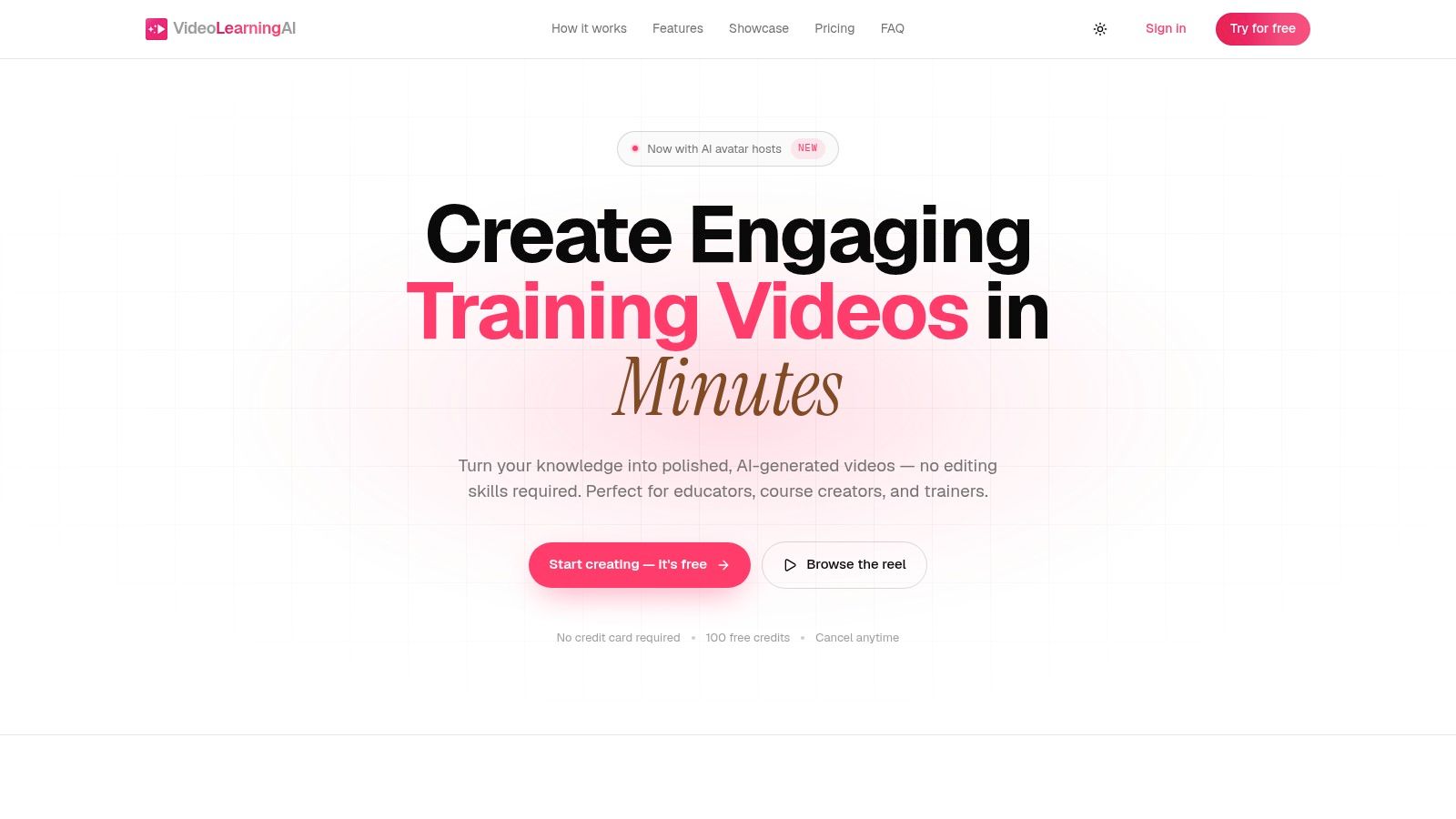
VideoLearningAI fits L&D teams that need a repeatable way to turn approved material into short, structured lessons. A user can begin with a sentence, course passage, or existing learning content instead of building a timeline from scratch. The platform then produces a script, narration, captions, visuals, scene timing, and a publishable video. That workflow suits onboarding refreshers, compliance explainers, sales enablement, and customer education.
Its main advantage is production repeatability. A team can apply the same instructional structure and visual treatment across a lesson library, reducing the effort required to produce each update. AI avatar hosts, multilingual voices, captions, and different aspect ratios also support regional or channel-specific versions without creating a separate studio process.
Best learning-production job
VideoLearningAI performs best for AI-generated microlearning. Its workflow is suited to lessons organized around one objective, feature, procedure, or customer objection. That use case aligns with findings summarized in HubSpot's review of Wyzowl's 2025 video research, which reports that 89% of businesses use video marketing and 95% of marketers consider video important to their overall strategy.
The same review reports that 98% of consumers have watched an explainer video to learn about a product or service, while 87% say a brand video has convinced them to make a purchase. For L&D and customer education teams, these findings support video as a familiar explanation format. They do not mean every lesson should follow a marketing style. The operational question is whether a team can produce accurate, concise explanations without making editing the bottleneck.
Use the platform when the source content is stable enough for templating, but expect subject-matter review whenever product behavior or policy language changes.
VideoLearningAI offers 100 free credits without a credit card. Paid plans start at roughly $29 per month for Starter, $49 for Pro, and $95 for Enterprise, per the vendor's current pricing page. The site describes approximate monthly capacities of 1,000, 2,500, and 6,000 credits, along with example usage rates of about 40 credits per minute for standard video and about 150 credits per minute for avatar-hosted video. Confirm the current plan page before budgeting, since credit consumption, capacity, and maximum video length can change.
> Practical rule: Calculate ordinary generation and avatar rendering separately. Include the expected lesson count, revision rounds, language versions, and avatar-led minutes before selecting a plan.
Where it needs governance
Automation reduces editing work, but it does not transfer instructional or regulatory responsibility to the tool. Review compliance lessons for legal wording, terminology, required actions, brand voice, and visual accuracy. Then test the actual export, tracking events, captions, and accessibility behavior in the target LMS. “LMS-compatible” is a starting point, not proof that a particular package will report correctly in production.
A 2025 peer-reviewed study of flipped medical instruction found that videos shorter than five minutes were associated with higher retention and higher response rates to embedded questions, with a median embedded-question response rate of 40.0%. The study does not guarantee the same result for product training, but it supports a practical workflow: keep each lesson concise, add a knowledge check when the objective requires one, and measure learner evidence rather than views alone. The study in Taylor & Francis provides the research context.
Pros
- Fast production: Converts source material into structured, publish-ready lessons without timeline editing.
- Learning fit: Supports microlearning for onboarding, compliance, sales enablement, and customer education.
- Production range: Provides AI hosts, 70+ voices across 16+ languages, captions, and photo-realistic, illustration, and 3D visual styles.
- Trial path: The free credit allocation lets teams evaluate output quality and review effort before paying.
Cons
- Credit planning: Longer lessons, revisions, and avatar rendering can use capacity quickly.
- Human review: Compliance, legal, product, and brand-sensitive content still needs subject-matter approval.
Website: VideoLearningAI
2. Synthesia
A global onboarding team can use Synthesia to produce one approved product explanation, then adapt it for regional audiences without arranging repeated filming sessions. The platform combines scripted scenes, avatars, slides, screen captures, and multilingual narration, making it a practical option when presentation consistency matters across a training library.
Its strongest application is a presenter-led introduction to a product, process, or policy. The avatar can establish the objective, explain why a workflow matters, and frame the learner's task. Actual product footage should then demonstrate precise clicks, fields, and interface states. Separating explanation from action reduces the risk of presenting a polished avatar video that leaves learners unable to complete the workflow.
Best learning-production job
Synthesia performs best as an avatar-led localization tool. Its published product information describes 100+ stock avatars, custom avatar options, multilingual text-to-speech, AI dubbing, templates, brand asset management, and enterprise controls such as SSO and SCIM. These capabilities fit distributed onboarding and compliance programs that need consistent messaging in adapted languages.
A sales enablement team could create a master overview for new representatives, localize the presenter and narration, and attach region-specific product screens. A customer-education team could use the same structure for release briefings, while keeping detailed task demonstrations in screen recordings or live walkthroughs.
Teams comparing production methods can also review this guide to generating video from a script. The relevant evaluation question is whether reviewers can validate the script, scenes, terminology, and screen sequence before rendering. Presenter realism matters less if subject-matter experts cannot review the learning flow efficiently.
Operational trade-offs
Synthetic presenters may feel less natural in sensitive compliance, change-management, or executive communication. Test the voice, pacing, pronunciation, and visual tone with the intended audience. Some lessons need a human instructor, while others benefit from a consistent avatar paired with real interface footage.
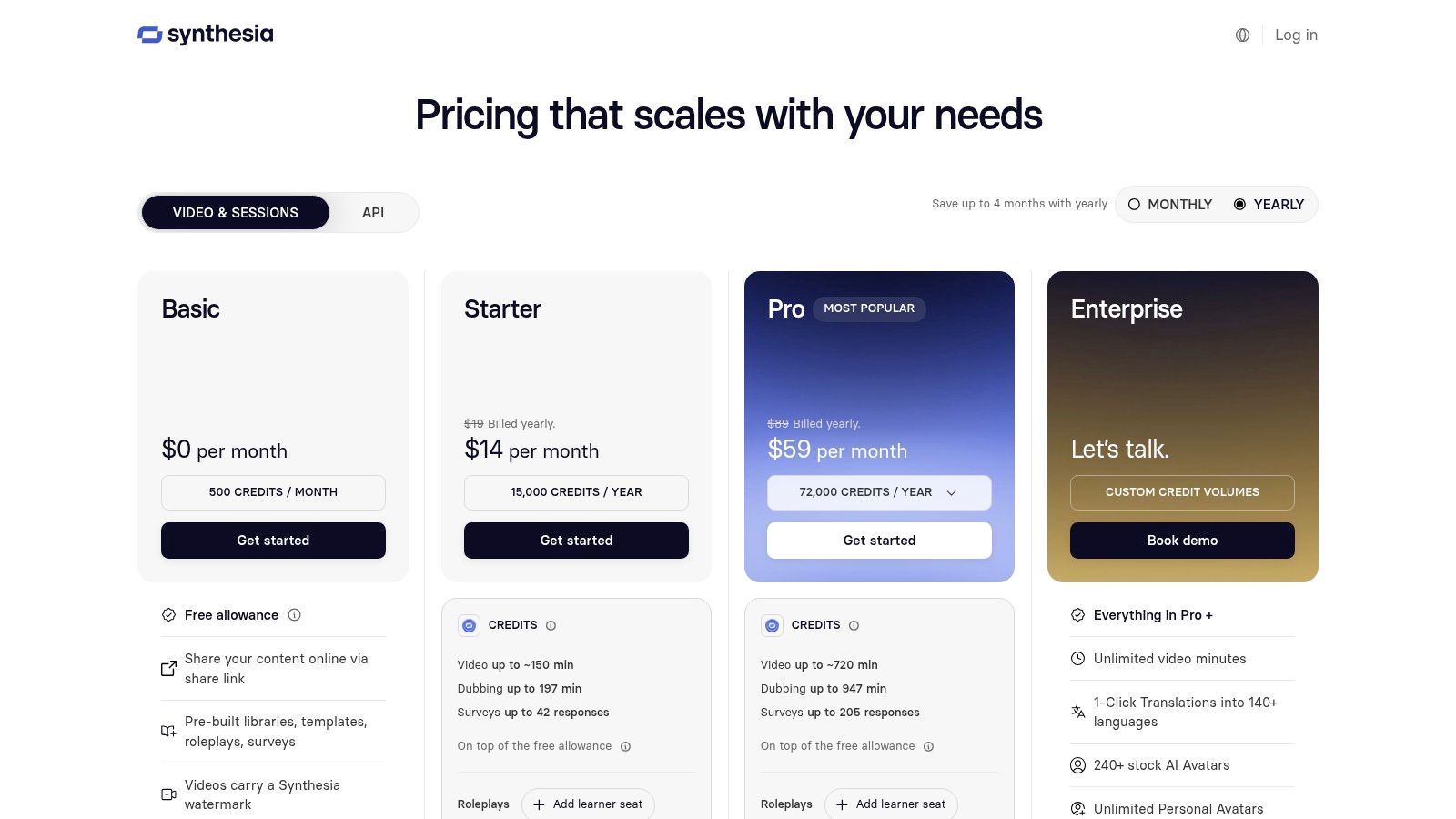
Pricing is usage-dependent. Check Synthesia for current included minutes, avatar access, translations, and enterprise controls. For a multilingual program, estimate the master lesson, localized versions, revisions, and review cycles together. A lower subscription cost can lose its advantage if every update requires extensive re-rendering or approval work.
Pros
- Localization workflow: Supports multilingual onboarding and compliance variants.
- Presenter consistency: Maintains a stable spokesperson style across lessons.
- Enterprise administration: Brand controls and identity options suit larger organizations.
- Mixed scenes: Combines avatars with slides and product footage.
Cons
- Human realism: Synthetic presenters may not fit every audience or subject.
- Usage planning: Included minutes or credits require monitoring across language versions.
- Screen accuracy: Detailed instruction still depends on correctly captured interface footage.
Website: Synthesia
3. HeyGen
HeyGen suits global customer education and enablement teams that must adapt one product lesson for multiple audiences. Its distinctive value is the combination of avatar presenters, translation, interaction, branching, collaboration, and SCORM export. That makes it more suitable for structured learning delivery than a basic avatar generator, particularly when learners need trackable paths inside an LMS.
Best learning-production job
HeyGen performs best as an avatar-led localization tool for onboarding, customer education, and distributed sales training. Its product information describes stock and custom avatars, voice cloning options, translation across 175+ languages and dialects, interactive quizzes, links, branching, SCORM export, LMS integrations, and enterprise identity controls on higher tiers.
A customer education team could record one explanation, add a quiz at a decision point, and direct learners toward different follow-up guidance. An onboarding team could create separate administrator and end-user paths without recording every explanation from scratch. The production model saves presenter time, while still requiring subject-matter review of product instructions and translated scripts.
The platform also supports automated publishing workflows. This workflow for turning RSS content into AI avatar video with n8n shows how structured source material can feed an AI avatar video process. In corporate training, add approval stages before publication. Automation can distribute an error as efficiently as an approved lesson.
Adoption checks
SCORM export alone does not guarantee a reliable LMS experience. Test completion rules, quiz reporting, branching behavior, captions, mobile playback, and how the LMS records partial viewing. Confirm that the selected plan includes the required avatar, voice, resolution, and translation options.
Capacity planning also depends on credits. A useful pilot should contain an ordinary lesson, a translation, an interactive lesson, and a revision. That sample reveals whether spending is driven mainly by minutes, avatar features, translation, or repeated generations.
Use HeyGen when localization and structured delivery matter more than natural live demonstration. For detailed interface instruction, pair the avatar with accurate product footage and review every language version before release.
Pros
- LMS suitability: SCORM and integration options support formal learning workflows.
- Localization: Broad language and dialect coverage supports international programs.
- Interaction: Quizzes, links, and branching create active learning paths.
- Collaboration: Business and enterprise controls help teams manage shared production.
Cons
- Credit monitoring: High-volume generation and advanced avatar features require tracking.
- Tier dependency: Important learning and enterprise capabilities may sit on upper plans.
- Review burden: Translated scripts and cloned voices still need language and brand review.
Website: HeyGen
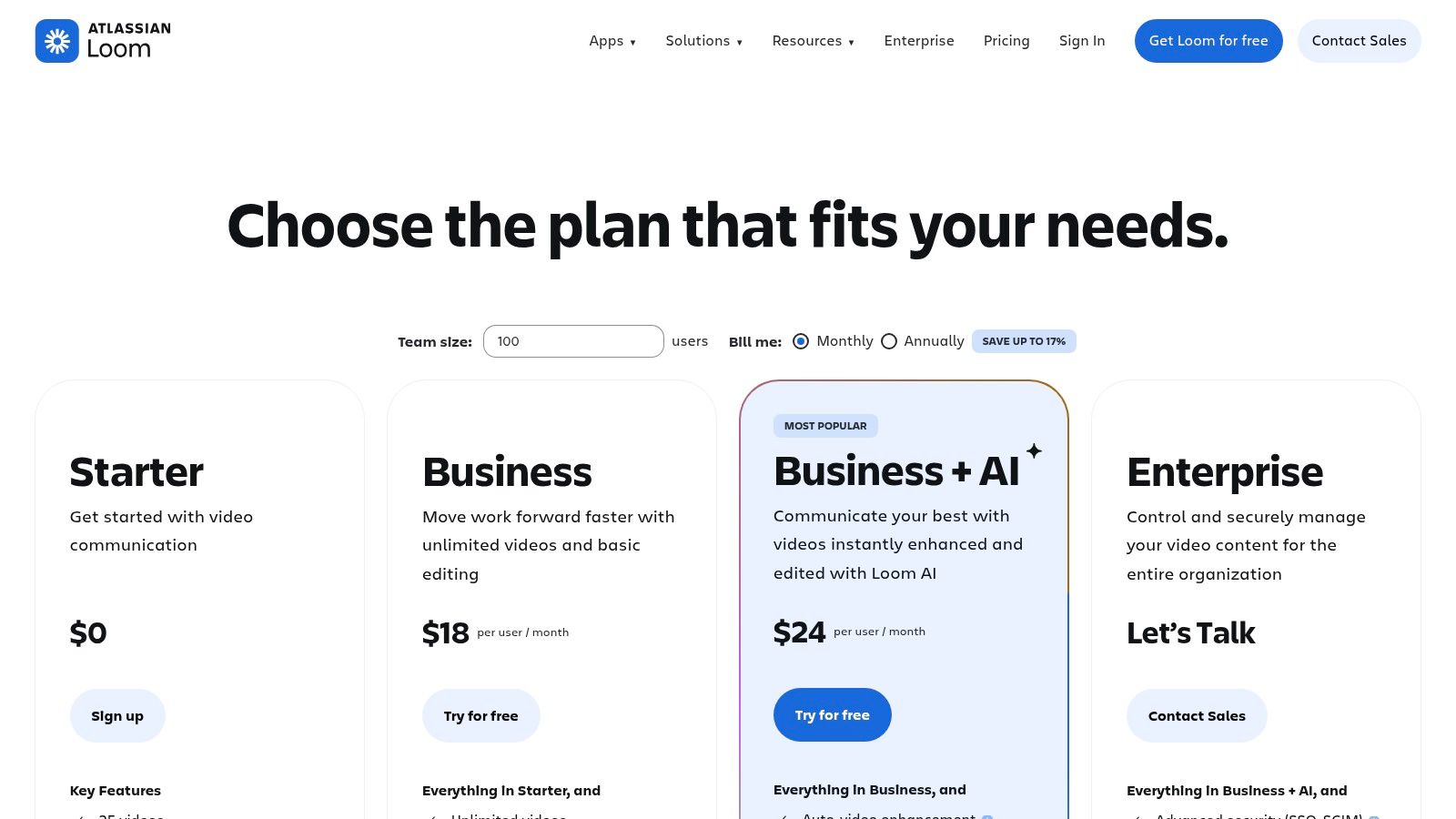
4. Loom
A sales engineer records a new feature walkthrough after a release. A customer success manager answers a recurring setup question with a link. A product trainer demonstrates the workflow while narrating the decisions behind each step. Loom is designed for these fast, authentic screen walkthroughs, with optional camera video, lightweight editing, and immediate sharing.
!Loom
Best learning-production job
Loom's strongest learning-production job is live product walkthroughs. The presenter can show the interface, explain what changed, identify the learner's next action, and point to help resources in one recording. Viewer insights, team libraries, chapters, transcripts, and AI summaries make the video easier to reuse than an unedited meeting recording.
A clear opening objective and controlled browser state often matter more than decorative transitions. For practical setup guidance, this screen recording tutorial with audio covers the recording conditions that affect comprehension, including audio, cursor placement, and screen flow.
Loom fits products that change frequently. A product manager can publish a short release explanation, while customer success can answer a support question without waiting for a production queue. That speed supports onboarding and internal enablement, although teams still need rules for naming, review, retention, accessibility, and outdated recordings.
Where Loom stops
Loom is not a full nonlinear editor for complex training productions. A multi-scene compliance course with timed overlays, animation, extensive localization, or a polished master file may require another tool. Its value lies in shortening the gap between understanding a workflow and explaining it to someone else.
Atlassian ownership provides enterprise security options through Atlassian Guard, including SSO and SCIM capabilities. Organizations purchasing through Atlassian should compare that packaging with direct Loom plans, since available features may differ.
Pros
- Recording speed: Creates short screen and camera walkthroughs with minimal setup.
- Authenticity: A subject-matter expert can explain a changing workflow in their own voice.
- Sharing: Links, comments, libraries, and viewer insights support asynchronous enablement.
- Enterprise administration: Atlassian controls can help larger organizations govern access.
Cons
- Editing depth: Complex productions require another editor.
- Formal assessment: Sharing and viewing analytics do not replace LMS assessment events.
- Consistency: Different presenters may vary in pacing, terminology, and visual quality.
Website: Loom
5. Vidyard
A sales engineer sends a feature walkthrough after a discovery call. The next decision depends less on editing polish than on whether the prospect watched, clicked the call to action, or requested a meeting. Vidyard is built for that distribution and measurement workflow. It hosts demos, supports forms and calls to action, and connects viewing activity with CRM and marketing systems.
Customer education teams can apply the same model to adoption campaigns. A tutorial in a resource hub can reveal which accounts watched the lesson and which may need follow-up from customer success.
Best learning-production job
Vidyard's strongest learning-production job is sales distribution with viewer-level analytics. It suits post-call education, feature launches, renewal support, and customer onboarding where video activity informs the next human or automated action. It is less suited to building a detailed lesson from a blank canvas.
Interpret the events separately. A play, watch threshold, chapter completion, CTA click, form submission, and meeting creation indicate different degrees of attention or intent. Reporting them all as “engagement” can obscure whether a learner understood the workflow or just opened the page.
A benchmark synthesis in this 2026 interactive-demo analysis reports 84.4% engagement, 61.6% completion, and 54% CTA click-through for top interactive demos. It also describes interactive-demo journeys converting at 24% versus 3% for non-interactive paths, while warning that completion definitions vary. Vidyard users should document each denominator and segment results by audience, traffic source, video length, and CTA placement.
Operational fit
Vidyard fits revenue and adoption workflows that already depend on CRM or marketing integrations. For an LMS lesson with embedded knowledge checks, a dedicated learning platform may be a better match. Pricing and seat packaging can also complicate planning for mid-sized teams. Include viewers, creators, hosting, integrations, governance, and analytics access in the buying model, and confirm what each plan includes through the Vidyard pricing page.
Pros
- Funnel visibility: Relates video behavior to sales and customer workflows.
- Lead capture: Forms and calls to action support gated education and follow-up.
- Governance: Workspaces, permissions, and enterprise controls organize distribution.
- Reusable hosting: A central library limits scattered links and duplicate uploads.
Cons
- Packaging complexity: Seats, analytics, hosting, and integrations may vary by plan.
- Editing limits: The editor is lighter than a dedicated desktop production tool.
- Metric interpretation: Viewer activity does not demonstrate learner competence.
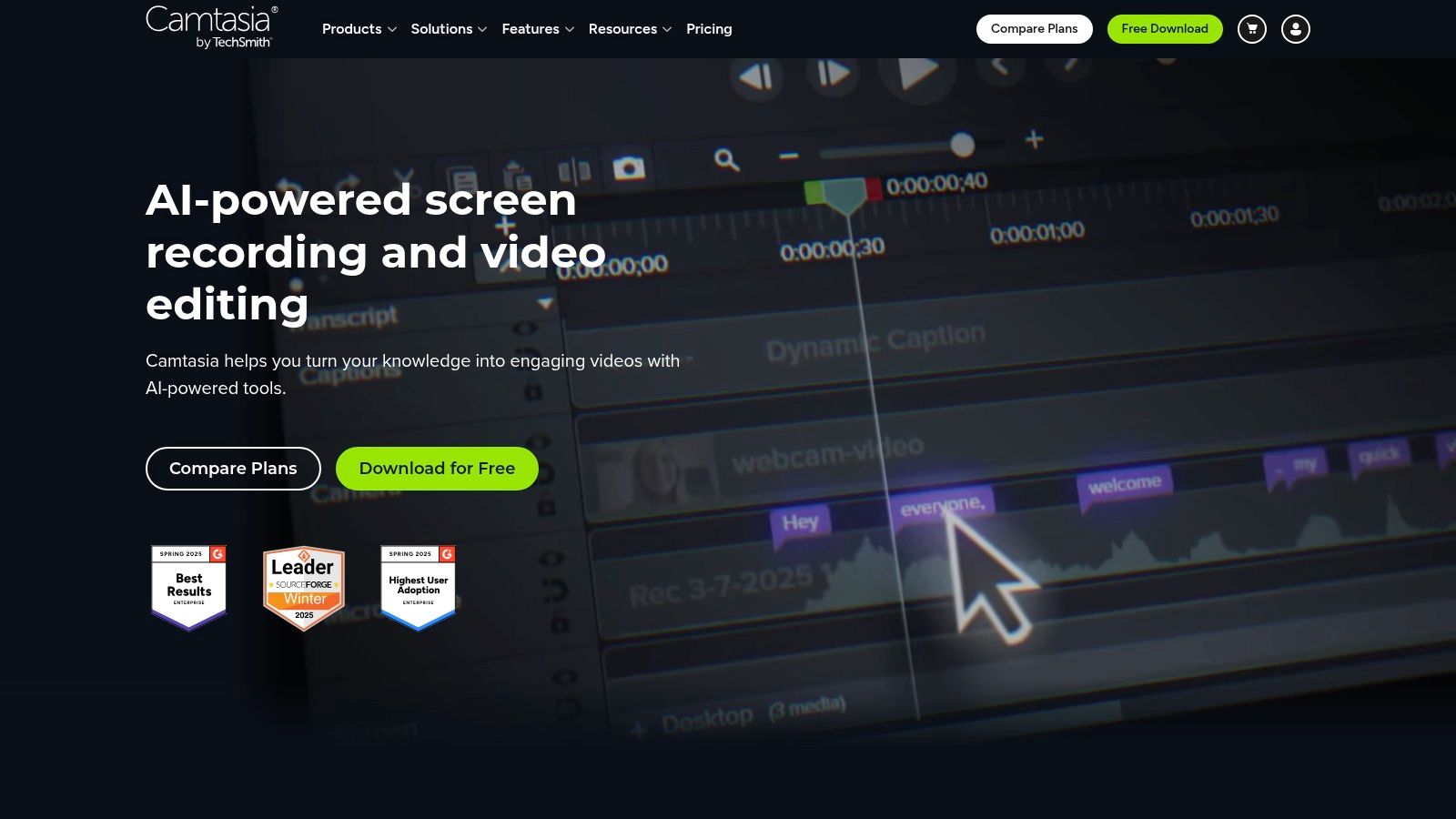
6. Camtasia
A support team documenting a changing software interface needs more than a quick recording link. It needs a production method that makes each click visible, each decision understandable, and later revisions manageable. Camtasia fits that job through desktop capture, narration, callouts, cursor emphasis, annotations, and multi-track editing. The result suits structured software onboarding, technical support training, and customer lessons where learners must reproduce an exact sequence.
Best learning-production job
Camtasia is strongest at desktop editing for precise screen instruction. A trainer can zoom into a control, emphasize the cursor path, pause at a decision point, and label the required action. Those controls matter in onboarding and technical enablement, where a learner must complete a workflow rather than absorb a product overview.
The editor also supports deliberate lesson design. A recording can introduce a task, demonstrate the steps, and pause for a recall question before the learner continues. Quizzes and cursor effects add instructional structure, while the TechSmith ecosystem supports an LMS-compatible assessment workflow. Teams converting presentations into lessons should also restructure slides around learner actions. This PowerPoint-to-video workflow offers a useful model for making that change.
A desktop editor requires more production skill than a link-first recorder. For an L&D team building a course library, that investment can support consistent templates, repeatable review, and clearer control over pacing. It is less suitable when a subject-matter expert needs to publish a simple update immediately.
Production and maintenance trade-offs
TechSmith moved Camtasia to an annual subscription model in 2025. Based on the supplied plan context, there was no monthly option as of mid-2026. Teams should compare that annual commitment with expected production volume and the cost of maintaining existing course assets.
Update effort often matters more than the subscription itself. A single long walkthrough can require extensive re-recording after an interface change. Separate demonstrations by task, retain source recordings, and preserve approved scripts so one changed screen does not force a complete rebuild.
Pros
- Screen clarity: Callouts, cursor effects, annotations, and zooms make software actions visible.
- Instructional control: Multi-track editing supports deliberate pacing and assessment points.
- Production consistency: Desktop templates and brand libraries help teams maintain a course system.
- Assessment support: Quizzes add recall opportunities to guided demonstrations.
Cons
- Learning curve: Designers need more editing skill than with lightweight recorders.
- Annual commitment: The subscription structure may not fit occasional creators.
- Update effort: Detailed projects require disciplined source management.
Website: Camtasia
7. Descript
Descript fits teams that develop training through scripts, transcripts, and spoken explanations. A product trainer can record a complete walkthrough, then revise the lesson by editing its transcript. Removing a mistake, tightening an explanation, or creating a shorter customer-education version changes the related video section as well.
Best learning-production job
Descript performs best as a text-based editing environment for narration-led training. A subject-matter expert can explain a workflow naturally rather than deliver every line from a rigid script. An editor can then remove repeated wording, filler words, or an unnecessary section while checking that the screen recording still supports the revised narration.
That workflow suits onboarding lessons, internal enablement updates, and customer education sessions built around a real product demonstration. Recording, transcription, audio enhancement, overdub, eye-contact tools, green-screen options, and multitrack editing support a path from an informal expert recording to a publishable lesson. The key operational step is visual review after transcript edits. Text changes can affect screen continuity, cursor position, labels, and transitions.
Descript's brand and enterprise controls support shared production, but teams need to monitor credits and media-minute usage. Capacity planning should include long source recordings, discarded takes, AI actions, and final exports, not only the minutes published. A plan that covers finished lessons may provide less headroom when each expert begins with an extended first take.
Where the workflow needs control
Transcript editing handles verbal cleanup quickly. It does not automatically correct a demonstration whose steps were recorded out of order, nor does it create the scene-level planning required for highly designed microlearning. Descript is therefore a stronger fit for narrated walkthroughs than for lessons in which every visual state and interaction is specified before recording.
Caption review also belongs in the production checklist. Automatic transcripts may misrecognize product names, commands, abbreviations, or speaker changes, and each error can change the meaning of a software instruction. Teams comparing this workflow with other AI content platforms can consult this expert review of AI content platforms.
Pros
- Fast corrections: Edit spoken content through the transcript.
- Unified workflow: Record, transcribe, edit, enhance, and publish in one environment.
- Flexible narration: Support real voices and AI-assisted audio tools.
- Team controls: Brand Studio and enterprise identity features support shared production.
Cons
- Visual composition: Complex scene design still requires manual work.
- Usage limits: Media minutes and AI credits require capacity planning.
- Caption accuracy: Domain terminology needs review before publication.
Website: Descript
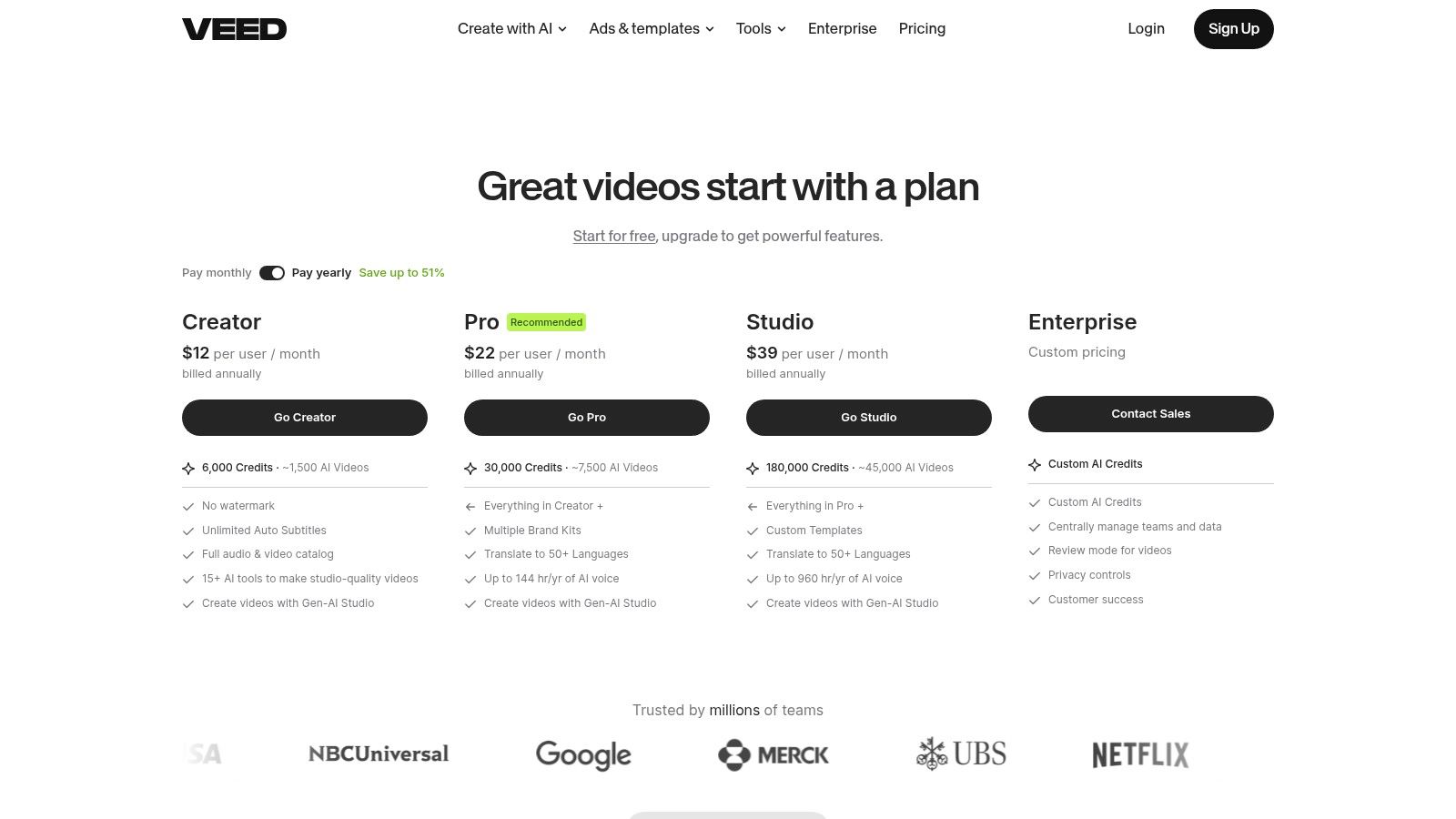
8. VEED
A customer education team can use VEED to turn one product capture into several training assets without installing desktop software. Upload the recording, apply a brand kit, add subtitles and annotations, translate captions, then export versions for a help center, sales library, or internal portal. VEED is therefore best understood as a browser-based branded editor, not a replacement for a specialist desktop production suite.
!VEED
Best learning-production job
VEED's strongest job is browser-based branded work. It suits small L&D and customer education teams that need quick, distributed editing and do not require Camtasia's detailed track control. Brand kits, layouts, templates, automatic subtitles, translations, AI cleanup, optional avatars, and team workspaces give non-editors a workable production path.
One feature recording can become a help-center lesson, a short sales explanation, and a captioned internal update. Keep the original screen footage and script as the source of truth. Automatic layout and subtitle changes can alter emphasis or obscure the product action, so a subject-matter expert should review each version before release.
Accessibility and review controls
VEED can generate captions and translations, but accessible training requires a broader check. The accessibility discussion from Wizbrand highlights readable fonts, contrast, and the need to preserve meaning for learners who cannot see animation, hear narration, process rapid speech, or use a mouse.
For an enterprise lesson, review AI captions, product terminology, speaker labels, transcript order, keyboard navigation, screen-reader behavior, and translated instructions. If a visual cue carries the instruction, add a text equivalent or alternative demonstration. This workflow matters for onboarding and customer education because an accurate recording can still fail if learners cannot follow its presentation.
Operational trade-offs
The browser workflow supports editing and review across devices, while kits, layouts, and templates help maintain a consistent training identity. Captions and translation support multilingual distribution. Team and API capabilities may suit recurring production, although generation and credit use can raise costs at scale. Detailed motion work remains better suited to desktop tools, and automated language output requires domain validation.
Website: VEED
9. Vyond
Vyond is best suited to animated scenario design, where the learning objective involves judgment, dialogue, or process context. Its characters, scenes, actions, text-to-video features, narration, and editor support compliance conversations, customer education, sales coaching, and policy explainers that would lose meaning as static slides.
Where Vyond earns its place
A compliance team can stage a difficult customer conversation, show an ineffective response, and then model a better one. A support organization can illustrate the context behind an escalation before introducing the required procedure. These scenarios give learners observable decisions to evaluate instead of asking them to absorb an abstract rule.
Vyond Go can speed up the first draft. Vyond Studio gives instructional designers tighter control over scenes, timing, actions, and dialogue. That distinction supports a repeatable workflow: generate a rough scenario, have a subject-matter expert correct the policy details, then refine the interaction and visual cues in the editor.
The tool also suits programs that need variations. Shared characters, settings, and visual elements let a training team adapt one structure for different departments, customer segments, or sales situations without rebuilding every scene.
Vyond should not carry the software demonstration itself. If learners must follow exact clicks, fields, menus, or system states, pair the animation with a screen recorder. Use the animated segment to establish the situation and consequences, then show real product footage for the task.
Governance before release
Animated presentation can make sensitive subjects easier to discuss, but it may also simplify a policy beyond what the business allows. Compliance, legal, or operations reviewers should check the scenario, escalation route, required documentation, and outcome. Localization adds another review layer: narration, on-screen wording, gestures, character behavior, and cultural references may not transfer cleanly.
Pricing can exceed that of a basic recorder for occasional solo creators. Enterprise security options, shared assets, and reusable libraries may justify the cost for larger L&D or enablement teams producing recurring scenario variations. Compare the subscription with the number of lessons, language versions, and departments the library must support.
Best fit: animated role-play for compliance, sales coaching, customer conversations, and process decisions.
Website: Vyond
10. ScreenPal
A support team recording a sequence of short answers needs a dependable production line, not a cinematic editing suite. ScreenPal fits that job with high-volume screen capture and straightforward editing. It combines screen and camera recording, annotations, captions, transcripts, AI voiceover, quizzes, polls, hosting, sharing, and team management. The result suits internal product updates, technical onboarding, support libraries, and customer education where publishing speed matters more than elaborate visual design.
Built for repeatable screen-based instruction
ScreenPal performs best when subject-matter experts must record focused demonstrations from their own devices. A support organization can create a searchable set of feature answers, while an L&D team can turn recurring onboarding tasks into short lessons. Captions, transcripts, AI voiceover, quizzes, polls, hosting, and privacy controls reduce the number of separate tools required for a basic learning library.
The production model is economical for content that is simple and frequently revised. A short explanation of a changing feature may not justify a full desktop editing project. ScreenPal lets a contributor capture, trim, caption, annotate, and publish within a lighter workflow.
Speed still requires governance. Set a naming convention, approved script outline, standard opening and closing, and a named review owner. Retain source recordings and project files so a product change can be corrected without searching through untracked versions.
Where the trade-off appears
ScreenPal provides strong value when many contributors produce ordinary recordings, although advanced branding and integrations may require higher plans. Its editor is lighter than a professional nonlinear tool, so teams creating cinematic, multi-track, or heavily animated lessons may need another application.
Quizzes and polls can check recall or learner reaction, but they should connect to the learner's actual task whenever possible. Completion data alone can hide partial or discontinuous viewing. Viewing profiles such as in-depth, fast, partial, and discontinuous behavior are well documented in learning analytics, so training teams should review interaction and task evidence alongside completion.
Pros
- Capture volume: Supports many straightforward screen-recorded demos.
- Accessible workflow: Captions, transcripts, and AI voiceover reduce production friction.
- Learning interactions: Quizzes and polls provide basic knowledge checks.
- Administration: Team management, hosting, privacy, and SAML options support organizational use.
Cons
- Editing depth: Professional productions may require a second editor.
- Tier limits: Branding and integrations may sit on higher plans.
- Consistency risk: Distributed contributors need templates and review controls.
Best fit: High-volume screen capture for product onboarding, support libraries, technical training, and customer education.
Website: ScreenPal
Top 10 Product Demo Video Makers, Feature Comparison
| Product | Core features | Quality ★ | Price / Value 💰 | Audience 👥 | Unique ✨ | |---|---|---:|---|---|---| | 🏆 VideoLearningAI | Script generation, AI avatars, 70+ voices, auto-captions, LMS export | ★★★★☆ (microlearning‑focused) | 💰 100 free credits; Starter ~$29 / Pro ~$49 / Enterprise ~$95 (credit‑based) | 👥 Educators, course creators, corporate L&D | ✨ Microlearning templates, auto-shot scenes, LMS-friendly publishing | | Synthesia | 100+ stock avatars, TTS/dubbing, templates, brand assets | ★★★★☆ (multilingual presenter) | 💰 Credit/min model; tiered subscriptions | 👥 Enterprise comms, training, localization | ✨ Large avatar library, custom avatar creation | | HeyGen | 500–700 avatars, deep localization (175+), SCORM, branching | ★★★★☆ (L&D workflows) | 💰 Credit‑based plans; Creator/Pro tiers | 👥 L&D & localization teams | ✨ SCORM export, interactive quizzes & branching | | Loom | One‑click screen+cam recorder, AI recaps, viewer analytics | ★★★★ (instant capture) | 💰 Freemium → Business via Atlassian | 👥 Product teams, quick demos, synchronous updates | ✨ Fast sharing, AI summaries & transcript editing | | Vidyard | Recorder + hosting, CTAs/forms, viewer‑level analytics, CRM | ★★★★ (sales enablement) | 💰 Seat/plan pricing; enterprise tiers | 👥 Sales, marketing, customer education | ✨ Lead capture + CRM integrations, detailed engagement analytics | | Camtasia (TechSmith) | High‑quality screen capture, multi‑track editing, callouts | ★★★★☆ (pro desktop tool) | 💰 Annual subscription (desktop license) | 👥 L&D, technical trainers, pro editors | ✨ Purpose‑built software demo tools and annotations | | Descript | Transcript‑based editor, overdub, screen recorder, AI cleanup | ★★★★☆ (edit-by-text speed) | 💰 Subscription + credits for premium AI features | 👥 Content teams, iterative editors | ✨ Edit video like a doc, overdub voice cloning | | VEED | Browser editor, auto-subtitles, brand kits, API & team tools | ★★★★ (web‑based editor) | 💰 Freemium; team/API plans | 👥 Marketers, CS, L&D teams | ✨ Strong subtitling/localization + API access | | Vyond | Animated scenes/characters, Vyond Go (AI), Studio editor | ★★★★ (storytelling/explainers) | 💰 Subscription tiers (Studio higher) | 👥 Customer education, communications, training | ✨ Character-driven stories + instant AI animation | | ScreenPal (Screencast‑O‑Matic) | Screen/cam recorder, auto-captions, AI voiceover, hosting | ★★★★ (high value) | 💰 Very affordable per-seat plans | 👥 Teams needing high-volume demo captures | ✨ Low-cost scaling with hosting, quizzes & transcripts |
Turn the Shortlist Into a Repeatable Training Workflow
Choosing a product demo video maker is only the first production decision. The more consequential choice is whether the tool matches the learning job, the evidence learners need to produce, and the way your organization will maintain the content after publication.
Start by defining the learner and the outcome. “Understand the new dashboard” is too broad for a reliable production brief. “Create a saved report, identify the required filter, and submit it for review” gives the writer, presenter, editor, and reviewer a shared target. It also makes it easier to decide whether the lesson should be a live walkthrough, an AI-generated micro-lesson, an animated scenario, or an interactive path.
Then choose the production mode:
- AI-generated microlearning: Choose VideoLearningAI when the team needs repeatable, template-driven lessons from source material.
- Avatar-led multilingual programs: Choose Synthesia or HeyGen when a consistent presenter and localization are central.
- Fast screen walkthroughs: Choose Loom or ScreenPal when a real expert needs to explain a changing workflow quickly.
- Sales distribution and analytics: Choose Vidyard when viewer identity, calls to action, CRM connection, and funnel reporting matter.
- Detailed desktop editing: Choose Camtasia or Descript when screen accuracy, narration cleanup, and revision control justify a deeper editor.
- Browser-based branded work: Choose VEED when non-editors need quick captions, layouts, translations, and team review.
- Animated scenarios: Choose Vyond when the lesson depends on characters, decisions, conversations, or contextual storytelling.
Write one representative script before buying. Include the opening objective, the actual product action, one likely mistake, the explanation of why the action matters, a recall question, and the final instruction. Test that script in the shortlisted tool rather than evaluating only a vendor template.
The production test should include the parts that usually expose operational problems:
- Source accuracy: Use real product screens when learners must reproduce a workflow.
- Caption validation: Check product names, commands, abbreviations, speaker labels, punctuation, and timing.
- Accessibility: Confirm contrast, readable text, transcript quality, keyboard access, screen-reader order, and a meaningful alternative for essential visual cues.
- Assessment: Place a knowledge check or decision point where it tests the objective, not merely whether the learner stayed until the end.
- Publishing: Test MP4 export, share links, captions, SCORM behavior, LMS completion rules, mobile playback, and analytics events.
- Governance: Assign content ownership, approval responsibility, version labels, review dates, and an update path when the product changes.
Pricing deserves its own calculation. Compare seats, included minutes, credits, avatar rendering, translation, AI actions, watermarks, export quality, hosting, storage, integrations, and enterprise administration. A low subscription can become expensive if each revision consumes credits or if the team has to move the output into several additional systems. Conversely, a higher-priced editor may be economical when it prevents repeated re-recording and supports a large reusable library.
Analytics should reflect the learning or enablement decision. Track play, a meaningful watch threshold, chapter completion, quiz response, CTA click, lead submission, meeting creation, or task performance as separate events. Report denominators clearly and segment by audience, traffic source, video length, and CTA placement. Don't treat a completed video as proof that the learner can perform the demonstrated task.
Finally, pilot before committing to a long-term tier or enterprise workflow. Produce one onboarding lesson, one compliance or policy scenario, and one product walkthrough. Have an L&D practitioner, subject-matter expert, accessibility reviewer, and target learner inspect the results. If the tool makes creation fast but review difficult, it hasn't solved the production problem. If it supports accurate, accessible, measurable updates with a manageable cost model, you've found a product demo video maker that can become part of a repeatable training system.
---
VideoLearningAI turns prompts and existing course material into polished, bite-sized training videos with generated scripts, narration, captions, visuals, AI hosts, multilingual voices, and learning-focused templates. For teams producing onboarding, compliance, sales enablement, or customer education lessons at scale, VideoLearningAI offers a practical way to test a microlearning workflow before building a larger production program.