Only 3% of respondents reported using generative AI for video creation in a typical week in the Reuters Institute's 2025 Generative AI and News Report, which surveyed users across six countries. Familiarity with a chat window doesn't mean someone has a reliable video-production workflow.
For L&D teams, that distinction matters. A ChatGPT video maker workflow needs more than a convincing clip: it needs an approved explanation, scenes a designer can repair individually, and a lesson learners can trust.
Table of Contents
- ChatGPT video maker workflow by stage - Keep the instructional decisions at the desk - Training video length by lesson type - Budget the narration before generating media - A prompt with a clear boundary - Avoid turning policy prose into narration - Build from the approved scene package - Check the delivered file rather than the preview - Establish permission and ownership - Use automation for triage - Training video failures and repairs - Separate production fixes from factual changes - Assemble a small, testable lessonWhat ChatGPT Handles Before Any Video Exists
The job split is straightforward: ChatGPT is the scripting desk; the video tool is the studio. The designer uses ChatGPT to organize source material into an objective, narration, and scene instructions. The video tool turns those instructions into timed visuals, voiceover, captions, and an export.
Don't treat a text response as a rendered training lesson. Even when a connected tool can generate media from a conversation, the production work still happens in a separate system, with its own settings and limitations.
ChatGPT video maker workflow by stage
| Stage | Owner | Artifact | Stop before moving on | |---|---|---|---| | Source check | Instructional designer | Redacted SOP or policy excerpt | No personal, customer, or unreleased data in the paste | | Objective | Instructional designer with ChatGPT | One learner action | A second objective means a second video | | Script | ChatGPT, then designer | Approved narration script | SME confirms every step is in the source | | Scene list | ChatGPT | Shot, on-screen text, seconds | One observable action per scene | | Assembly | AI video maker | Timed visuals, voice, captions | Captions match the approved script | | Publish | Publisher | Horizontal MP4 or SCORM package | Synthetic voice disclosed and file plays in the LMS |
Say a service-desk team needs a password-reset refresher. The designer selects the relevant SOP excerpt, removes identifying information, and asks ChatGPT to draft a short lesson. A subject-matter expert, or SME, checks the actual reset sequence before anyone generates the presenter or screen visuals.
That sequence prevents an expensive mistake: making inaccurate instructions look finished. A reviewer can correct a sentence in the script without discarding narration, captions, and several generated scenes.
Keep the instructional decisions at the desk
ChatGPT can simplify dense language, identify unexplained terms, and suggest where a visual would help. It can also introduce a plausible step that the source never authorized. Ask it to identify gaps rather than fill them.
The designer owns the learning objective and the relationship between each spoken instruction and its evidence. The SME owns factual approval. Neither responsibility transfers to the video tool when the script moves into production.
On-screen labels need particular care. A generated image of a reset console may look credible while displaying controls that don't exist. Use an approved screen capture when learners must recognize an exact interface, and add labels as editable text rather than asking an image generator to draw them.
> Working rule: Give each scene one observable action and name the person who can approve it before export.
A long prompt describing the entire lesson is a poor review artifact. A scene list lets the SME point to the instruction that's wrong and lets the designer change that instruction without disturbing the rest.
Microlearning Lengths That Hold Attention
Choose length from the learner's task, not from the amount of source material available. The following are proposed planning targets, not evidence-based completion benchmarks. Use them to brief a lesson, then adjust after reading the script aloud and watching someone attempt the task.
Training video length by lesson type
| Lesson type | Target length | Cut into another lesson | |---|---|---| | Quick refresher | Brief enough to review immediately before the task | Background and history | | Single procedure | For example, 2–3 minutes in a pilot brief | Alternate paths and exceptions | | One-decision scenario | For example, 3–5 minutes in a pilot brief | A second plotline | | Compliance point | Enough time to explain the rule and its practical consequence | The full policy text |
A refresher assumes the learner already knows the procedure. It should restore the cue they've forgotten, such as where to find the approved reset guidance. A first-time demonstration needs more room because the learner must locate controls, understand the action, and recognize the result.
A scenario needs a different rhythm. The learner has to understand the situation before the decision makes sense. Cutting all the setup might shorten the video while making the choice impossible to judge.
Budget the narration before generating media
For a hypothetical three-minute lesson, a designer might start with a planning pace of 140 spoken words per minute and a draft ceiling of 420 words. That's arithmetic for a production brief, not a universal speaking-speed recommendation. A screen demonstration may need fewer words so learners can inspect the interface.
Read the draft aloud with the intended pauses. Include time for a warning to remain visible, a cursor to reach a control, and the learner to compare the before-and-after state. If the narration barely fits when read quickly, the script is too crowded.
> If the scene list contains separate learning objectives, split the lesson before generating media.
Move product history, unusual exceptions, and legal preambles into supporting material when they aren't necessary for the target action. Keep a link to the current policy beside a compliance lesson instead of narrating the whole document.
Shorter isn't automatically better. A reset demonstration that skips verification may be compact but unusable. Cut unrelated explanation before cutting an essential step.
The practical question is whether the learner has enough time to understand and act. Use the microlearning video length guide when deciding whether a crowded draft needs trimming, a slower demonstration, or a separate lesson.
Before approving the duration, ask a colleague unfamiliar with the procedure to describe what they would do next. If they can repeat the slogan but can't identify the action, another reduction in runtime won't solve the design problem.
How to Turn a Source Document into Scenes
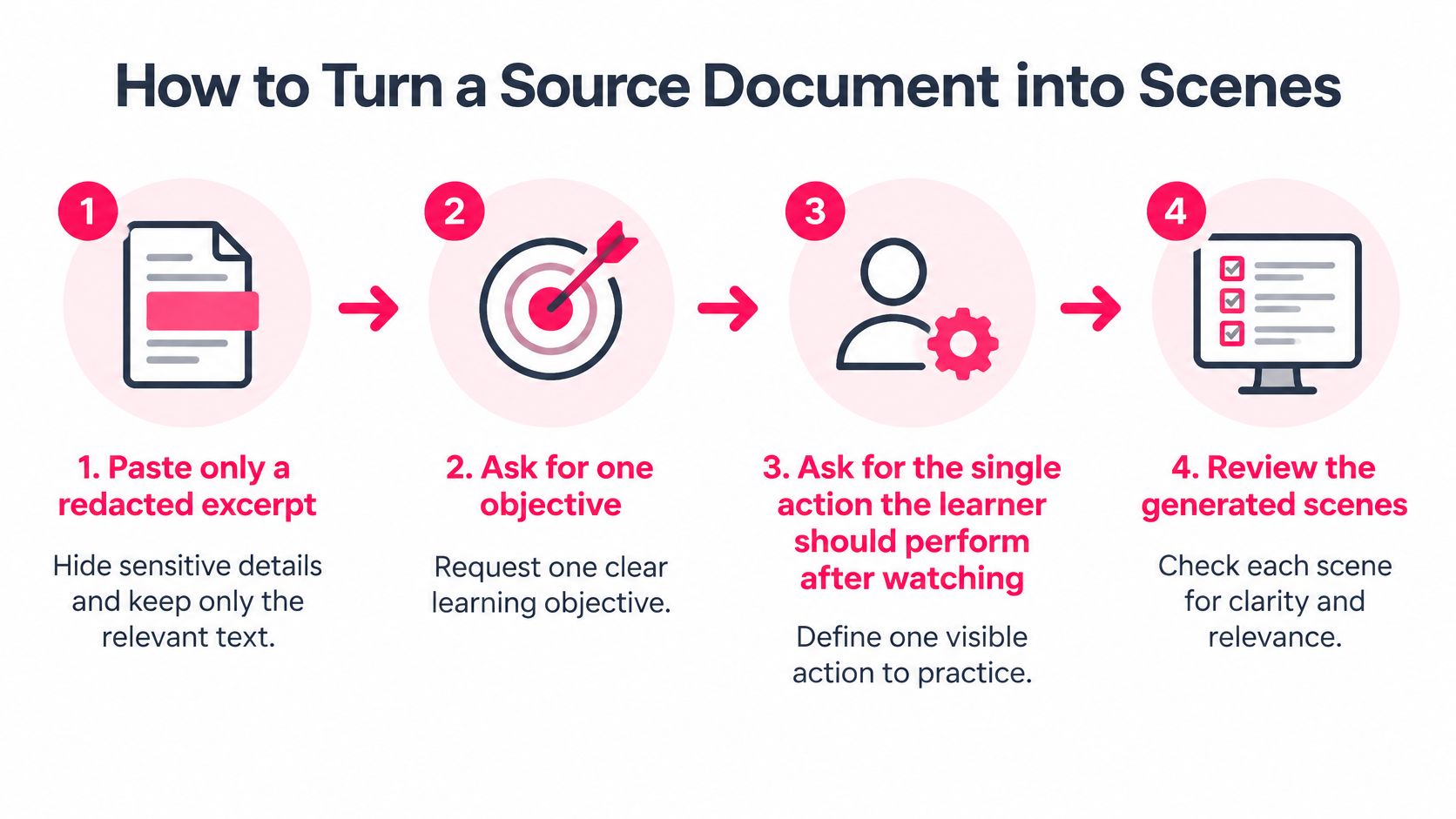
Start with the relevant excerpt, not the entire document library. Use these requests in sequence, keeping the source attached to the conversation so the draft remains traceable.
1. Set the boundary. Paste a redacted excerpt and request a single learning objective plus the visible action the learner should perform afterward. Tell ChatGPT to list missing information rather than infer it. 2. Draft spoken narration. Specify the audience and a provisional duration. Ask for direct instructions, ordinary spoken language, and no promotional claims. 3. Request a scene table. Include scene number, spoken line, visual, on-screen text, and duration in seconds. Keep each text overlay to a short phrase; retain exact interface labels even when they're longer. 4. Add a consistency block. Copy product names from the SOP. Define the setting, presenter appearance, interface reference, and visual style that every scene should use. 5. Run a source comparison. Ask ChatGPT to map each spoken instruction to the supporting passage and separately list anything the document doesn't support.
Use this visual checklist when preparing the source and reviewing the resulting scenes.
!A four-step guide on how to turn source documents into educational video scenes for creators.
A prompt with a clear boundary
The following is a hypothetical production brief. Replace its duration if the approved procedure needs more demonstration time.
You are an L&D scriptwriter. Using only the redacted SOP below, draft a 90-second password-reset lesson for service-desk agents. Return a scene table with narration, visual instructions, exact on-screen labels, and proposed timing. Don't add procedural steps. Mark missing information for SME review. Use a calm, direct tone.
The resulting structure might look like this, only if the SOP supports these actions:
| Scene | Instructional purpose | Visual treatment | |---|---|---| | Opening | Identify the lockout symptom | Show the approved example error | | Console | Locate the reset function | Use the current training-environment screen | | Rule | Explain the temporary-password requirement | Add the approved rule as editable text | | Handoff | Return to the agent's next authorized action | Show the supported next step |
A rough narration example could read:
An account lockout doesn't always mean the password needs changing. Check the reported symptom against the approved guidance before choosing the reset route.
Open the reset console shown in the SOP. Use the current interface reference, and confirm that you're working with the intended account before continuing.
Apply the temporary-password rule exactly as written in the procedure. Don't substitute a familiar rule from another system. If the guidance is missing or unclear, stop and ask the procedure owner.
Return to the service-desk workflow and complete the next action specified in the SOP. This lesson covers the standard route only. Use the linked guidance when the account state or reported symptom doesn't match the example.
This is an illustration of spoken style, not a deployable password-reset procedure. The SME must replace general references with the organization's authorized instructions.
Avoid turning policy prose into narration
A paragraph that starts with policy scope, definitions, departmental responsibilities, and exceptions makes learners wait for the action. Ask the designer to extract the task first, then keep only the context needed to perform it safely.
For document-heavy projects, the PDF-to-video workflow can help organize the handoff from an excerpt to a reviewable lesson brief.
Use this video as an additional walkthrough while preparing that handoff.
Save the approved narration as a controlled artifact. It becomes the only text the video tool may narrate, rather than another suggestion the tool is free to rewrite.
How to Assemble Voiceover Templates and Export
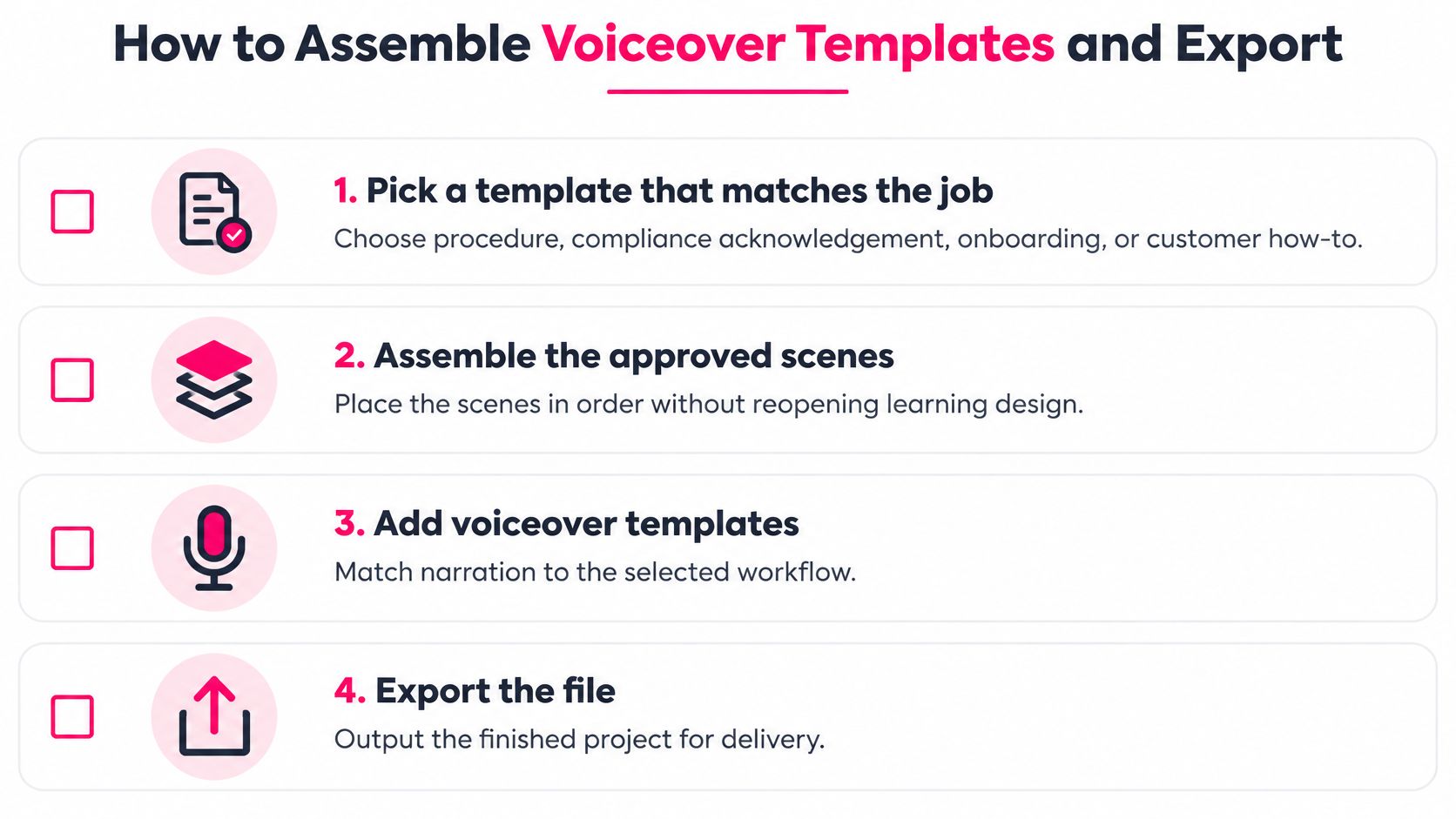
Assembly should execute the approved scene plan, not reopen the learning design. Keep the narration, scene list, and visual references together so the person building the video doesn't have to guess which version is current.
Use this checklist to keep the handoff visible during production.
Build from the approved scene package
1. Pick a template that matches the job. A procedure template should reserve space for a readable interface. An onboarding template can give a presenter more room. Keep headings and lower-thirds in stable positions so learners don't have to search for them.
2. Choose a single visual style for the lesson. Mixing photographic people with cartoon equipment can make it harder to recognize the same object across scenes. Use deliberate contrast only when it communicates something, such as separating an example from an actual system screen.
3. Generate voiceover from the approved narration. Build captions from the same text, then align them with the audio. Listen for product-name pronunciation and abbreviations; a correctly spelled caption won't repair an unintelligible spoken instruction.
4. Time each scene to its spoken line and the action being shown. Hold the resulting screen state long enough to inspect it. If a clip combines separate actions, divide it rather than hiding the extra action under faster narration.
5. Export for the destination. Use horizontal MP4 for a conventional course player. Reserve vertical or square versions for destinations designed around those layouts, such as a teaser or internal feed. Changing the frame after assembly can crop the control learners need to see.
6. If the LMS requires completion reporting, package the lesson as SCORM and configure the completion rule explicitly. A watch-through rule records viewing, not competence. Use an existing assessment when the course needs evidence that the learner can make the decision.
7. Add the disclosure to the lesson description. State plainly when the voice or presenter is synthetic. Keep the wording factual rather than presenting it as a novelty.
Check the delivered file rather than the preview
A preview inside the authoring tool isn't the same as playback in the LMS. Test the exported artifact using the learner's access route, including the course page and its player controls.
Check caption readability on a smaller screen and listen through ordinary headphones. Background music that sounds restrained on speakers can still mask consonants in a procedural explanation.
If a delivery specification calls for a higher-resolution master, MyImageUpscaler's guide to upscaling Full HD video to 4K offers useful context for that post-production decision. Upscaling won't correct a misspelled label or restore a control cropped out of the original frame.
Keep the source project alongside the export. When a product screen changes, the publisher needs the editable scene, not just a finished file.
> Delivery test: The learner-facing player, not the authoring preview, decides whether the export is usable.
Finish with a file the LMS accepts, captions the learner can read, and a completion behavior the publisher has tested.
Governance Checks Before Learners Press Play
Render speed isn't a meaningful success measure if nobody can explain who approved the instructions. Treat adoption as a review problem: who may upload the source, who owns the factual decision, and who can authorize publication?
Run the checks in the order a publisher encounters the risks. Don't leave source permissions until after the presenter has already been generated.
Establish permission and ownership
- Classify the source. Remove employee details, customer records, and unreleased product information before pasting text. Don't upload the unredacted original as a visual reference afterward.
- Confirm asset rights. Check permission to use slides, logos, recordings, and identifiable people. Don't clone an employee's voice or appearance without their consent.
- Name the factual approver. Record the SME, source version, accepted prompt, and revision note with the approved script.
- Review learner-facing signals. Confirm that synthetic-presenter disclosure is visible and that captions preserve procedural meaning, including negatives and warnings.
An approval record should identify what the reviewer accepted, not just state that someone reviewed the project. Keep the approved cut linked to the script version so a later export can't inadvertently inherit an outdated sign-off.
Use automation for triage
The NIST review of synthetic-content detection reports detector accuracy ranging from 62% to 99%, depending on the evaluation. A detector score isn't proof that a video is authentic, accurate, or appropriate for training.
Keep detection separate from other automated checks. Transcription can reveal a missing spoken word; a prohibited-claims check can flag wording for review; provenance information can help trace an asset. None independently establishes that the procedure is correct.
For a practical verification sequence, Humantext.pro's step-by-step video verification workflow provides a useful companion to the publisher's own approval record. Treat external checklists as support for judgment, not a substitute for organizational ownership.
Require a named person to authorize regulatory, safety, medical, and financial lessons. If an automated check flags uncertainty, route the actual scene and its supporting source to that reviewer rather than sending a score without context.
Document these decisions in repeatable quality assurance procedures. Re-run the relevant checks when the model, voice, template, or post-production process changes, even when the narration hasn't changed.
The approver's final question is practical: would I stake this procedure on this cut? If the answer is uncertain, keep it out of the learner's course until the uncertainty is resolved.
Scene Failures and How to Repair Them
A polished scene can still be the wrong teaching asset. The technical evaluation of video-generation models as world simulators describes failures involving basic physics, object-state changes, long-duration coherence, and objects appearing unexpectedly.
Those limitations matter even if another tool generates your frames. Don't assume a realistic-looking interaction proves that the learner has seen a valid procedure. Diagnose the failed scene and repair that scene alone.
Training video failures and repairs
| Symptom | Likely cause | Repair | |---|---|---| | Spoken step is not in the SOP | The prompt summarized instead of tracing the source | Re-run the fact-check prompt against the excerpt only | | On-screen label is garbled or invented | The model wrote its own UI text | Supply the exact label as an editable overlay; shorten surrounding copy, not the label | | Person or tool changes between scenes | Scenes were generated from different briefs | Regenerate the bad scene with the same consistency block | | Captions disagree with the voice | Captions came from a new summary | Rebuild captions from the approved script | | SME calls the tone salesy | Audience and banned phrases were missing | Add role, reading level, and phrases to avoid, then regenerate narration | | Clip shows two actions | The scene list was merged to save time | Split it and render one observable action |
Separate production fixes from factual changes
A designer can usually correct a misplaced caption, inconsistent background, or unreadable overlay without changing the instructional decision. A missing source step is different. Send it to the SME before generating replacement narration.
Tone edits also need care. Removing a slogan is a production correction; changing a qualified instruction into an absolute claim changes meaning and needs factual approval.
For realistic presenters and scenes, Bulk Image Generation's ethical AI video production tips offer a useful additional reference when choosing how convincingly to depict people and events.
The publish gate is factual accuracy, visual continuity, readable text, narration that matches the approved script, and scenes that still serve the original objective. Record failures against those categories so the team can distinguish a weak prompt from an unclear source.
Measure first-pass acceptance on representative lessons, not a vendor demonstration. Define acceptance before the pilot: an export requiring a factual correction hasn't passed, even if the presenter looks excellent. Log the rejected scene and repair reason so the next brief benefits from the correction.
Run a Pilot Lesson and Publish It
Pick a password-reset SOP that already generates repeat questions and build a single refresher this week. Choose a provisional duration that fits the supported action, then keep the approved scope stable through production.
Use two acceptance checks for the pilot: whether the SME accepts the script without factual revision, and whether the exported file plays correctly in the learners' LMS. Record the review pass when approval occurs and keep the playback result with the export.
Assemble a small, testable lesson
At assembly, VideoLearningAI can take the approved script through an avatar host and voice, timed scenes with captions, and sharing without timeline editing, with MP4 and SCORM export options.
- If facts fail: Return to the source excerpt rather than polishing the visuals.
- If playback fails: Correct the package or player configuration and test the learner's access route again.
- If both pass: Reuse the template for the next procedure while keeping its source and approval record separate.
Choose MP4 for a straightforward course upload or SCORM when the LMS needs completion reporting. Use a public sharing route only when the lesson is cleared for audiences outside the course.
Don't begin with a catalog rewrite. Build a representative pilot set, review the acceptance results, and expand only when the team is willing to repeat the process.
---
VideoLearningAI turns a script or lesson idea into narration, visuals, captions, and timed scenes, with MP4 and SCORM exports for delivery. Bring one approved procedure to VideoLearningAI and build a pilot lesson you can put through SME approval and an LMS playback test.