A finished video can prove that someone pressed play. It can't prove that they changed how they work. A 2009 peer-reviewed comparison found that multimedia online training for business professionals was pedagogically equivalent to live instruction in overall knowledge acquisition, with online participants gaining slightly more. The study published in the International Review of Research in Open and Distributed Learning also found that some web-based learning elements contributed more than their classroom counterparts. The lesson isn't that video automatically works. Instructional design, not the camera, determines whether a staff training video teaches anything useful.
The common mistake is treating training as a production project: choose a template, record a presenter, publish the file, and report completions. Start instead with the employee's job. What decision, action, or conversation needs to change? For practical guidance on matching video to workplace safety instruction, My Safety Manager's video training guide offers a useful reference point.
> Test before recording: Can you name the one thing a viewer should do differently tomorrow? If the answer is vague, the video won't earn its production cost.
Table of Contents
- Length and Structure for Each Training Type
- Plan the Video Around One On-the-Job Task
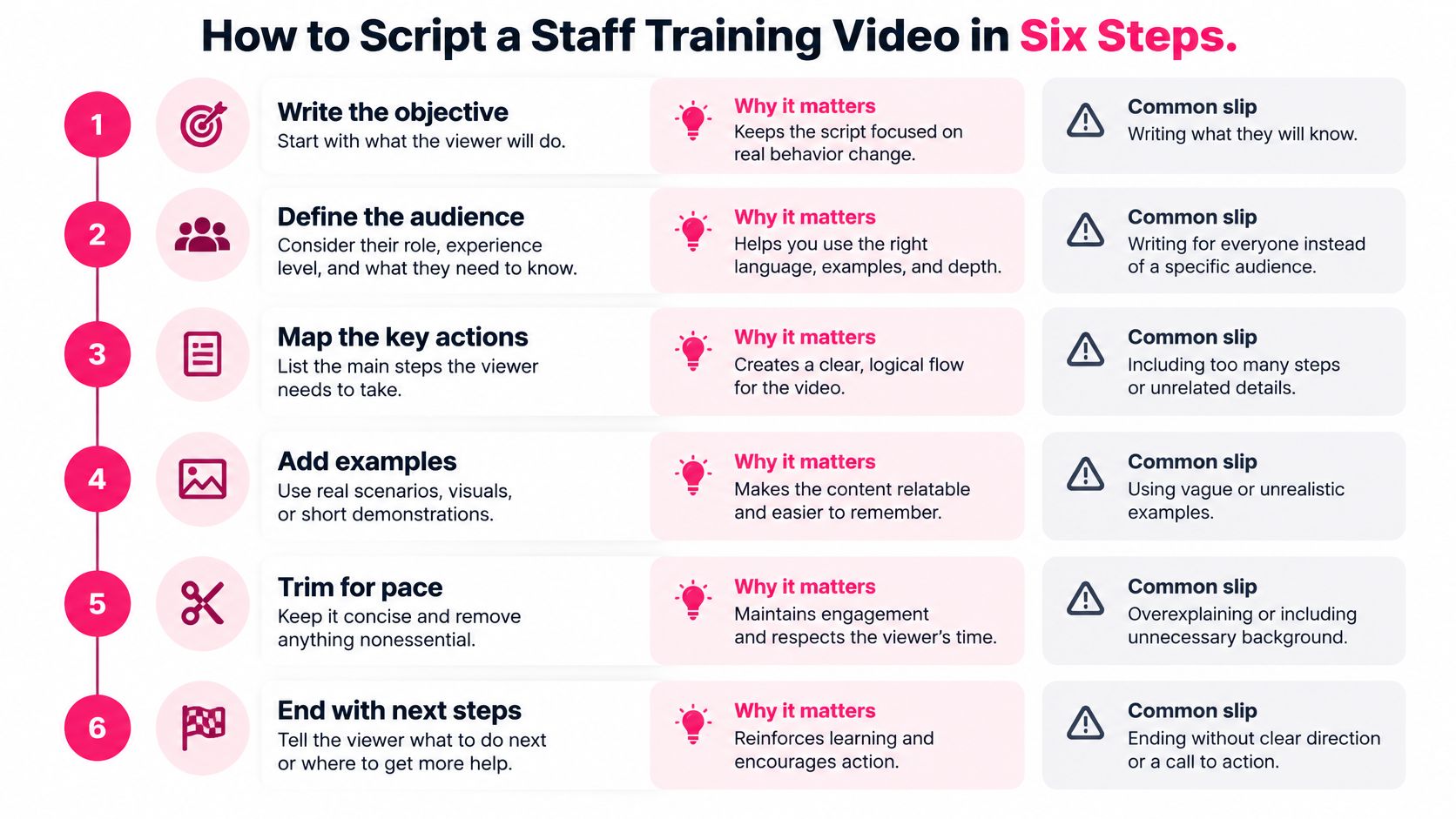
- How to Script a Staff Training Video in Six Steps
- Microlearning Formatting That Holds Attention
- Publishing to Your LMS Without Losing Completion Data
Length and Structure for Each Training Type
Choose the row that matches the work task, then keep the lesson to the objective in that row. One objective per video is a useful production constraint, not a slogan: it makes scripting easier, keeps review focused, and gives the learner one clear action to practice. VideoLearningAI's implementation checklist also recommends defining one clear learning objective for each lesson before production.
| Training type | Target length | Objectives per video | Recommended structure | |---|---:|---|---| | Compliance policy change | 2–4 min | 1 rule | Scenario hook, the rule, one worked case, knowledge check | | New software feature | 2–5 min | 1 task | Problem, screen-recorded task, common error, try-it prompt | | Onboarding orientation module | 4–6 min | 1 concept | Welcome, role context, the concept, checklist for day one | | Safety or equipment procedure | 1–3 min | 1 procedure | Hazard, numbered steps on screen, what to do if it fails | | Sales objection handling | 3–5 min | 1 objection | Customer quote, response options, role-play prompt | | Customer-facing policy | 2–4 min | 1 policy | Customer situation, correct response, one wrong response to avoid |
The target ranges are working references, not measured averages. Pick the structure as well as the length. Reusing a scene order for the same training type helps learners recognize the pattern and lets reviewers concentrate on whether the content is correct. For examples of core role-based training topics, see Overton Security's overview of foundational skills for security officers.
For example, a 14-minute data-privacy module might contain a policy update, a customer-facing response, and a knowledge check. Split it into three videos: a 4-minute policy-change lesson that states the new rule; a 4-minute scenario showing the right response to a data request and one wrong response to avoid; and a 3-minute check based on that scenario. The three clips total 11 minutes. Cut the remaining three minutes of repeated background the audience already knows, rather than carrying it into every segment.
Plan the Video Around One On-the-Job Task
Before writing, find out whether the problem is a knowledge or skill gap. If an employee can't complete a task because a form is broken or a tool blocks the next step, another video won't repair the process. First name the job and list the actions an employee must perform within it.
Then record the audience's prior knowledge, the device they'll use, and whether they'll watch on shift or at a desk. Choose the training type from the table, identify the person who signs off on the learning objective, and name the manager who'll lead follow-up. Set success as an observable behavior, such as submitting a form correctly, rather than a view or completion count.
Capture the decisions in a one-page working brief that you can reuse by changing the task, training type, and owner. If the objective is hard to make observable, this guide to writing learning objectives can help turn a broad topic into a clear action.
How to Script a Staff Training Video in Six Steps
A script should show what the viewer will do, not just what the organization wants to tell them. Use a consistent script and visual structure so subject experts can review lessons quickly and learners know what to expect.
1. Write the objective as an action. Start with what the viewer will do, such as “submit a customer data request through the approved workflow.” A title like “Data Privacy Basics” names a topic, not an outcome, so it gives the script no firm boundary.
2. Open on the moment the task happens. Describe the actual workplace trigger: a customer asks for their information, a machine signals a fault, or a new employee reaches a setup screen. Starting in context helps viewers recognize when to use the instruction; opening with a company history or generic welcome delays the reason they're watching.
3. Draft narration for the finished runtime. Aim for roughly 130 to 150 words per minute of video so viewers have time to follow what appears on screen. Don't write a dense paragraph and force the presenter to rush through it.
4. Map scenes in a clear sequence. Follow the structure for the chosen training type and give each scene one visual idea. A screen recording can show a single software task; a procedure lesson can show its steps in order. Avoid cramming several unrelated actions into one frame.
5. End with a check or practice prompt. Ask the viewer to choose a response, predict the next step, or try the task. If the video ends after the explanation, the learner has no immediate reason to retrieve or use the instruction.
6. Review before recording. Send the script to a subject expert and a frontline employee, then resolve every flagged line. AI-assisted drafts need the same scrutiny: generated wording can sound confident and still be wrong, and VideoLearningAI says users are responsible for reviewing, editing, and validating generated videos before use.
Microlearning Formatting That Holds Attention
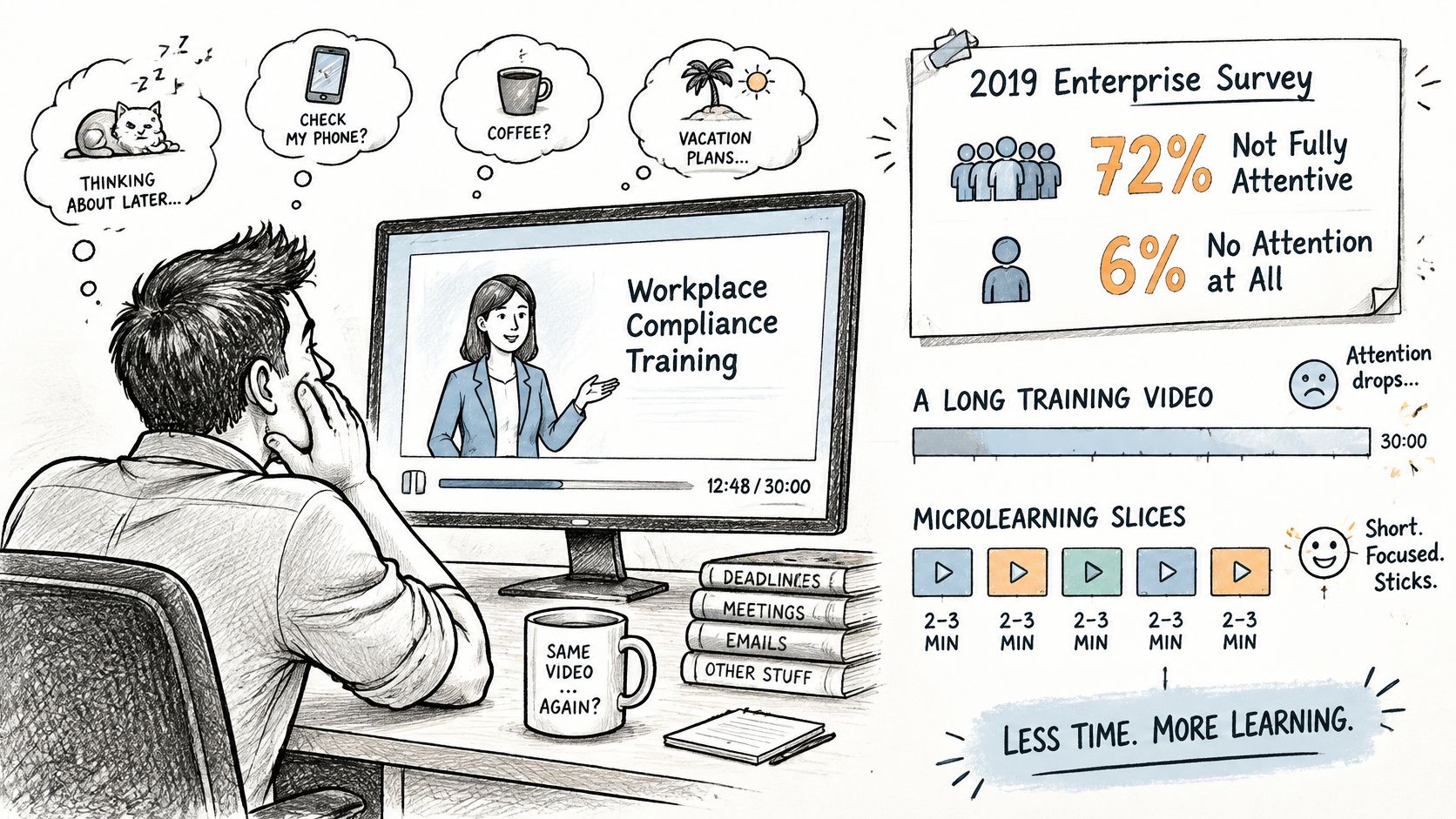
Short video is widely used, but short doesn't guarantee attention. In a 2019 survey of more than 1,200 full-time employees at U.S. companies with over 500 employees, 72% said they didn't give training videos their full attention, including 6% who paid no attention at all. Meanwhile, 82% said interactive videos held their attention better than traditional videos, according to the 2019 enterprise video survey summarized by HR Daily Advisor.
Use three formatting rules to make each lesson easier to follow.
- Give each scene one idea. Change the scene when the idea changes. For a screen-heavy lesson, keep a scene to around 20 to 30 seconds before moving to the next screen, step, or example.
- Keep on-screen text light. Show one key term or step number at a time. Full sentences competing with narration and captions make it harder to follow the action, especially on a phone.
- Add an interaction during longer lessons. Every two to three minutes, pause for a prediction question, a short check, or a clickable choice. Ask what the employee would do next in the scenario rather than asking them to repeat a definition.
A brief video about handling a customer request might pause after showing the customer's message and ask which response is appropriate. That small decision point makes the viewer process the example instead of watching passively.
The format should support the task, not decorate it. Animated transitions that add time without meaning and presenters who read slides word for word make a lesson feel longer without making the action clearer. For a look at pacing in a short training-video format, use this example:
Publishing to Your LMS Without Losing Completion Data
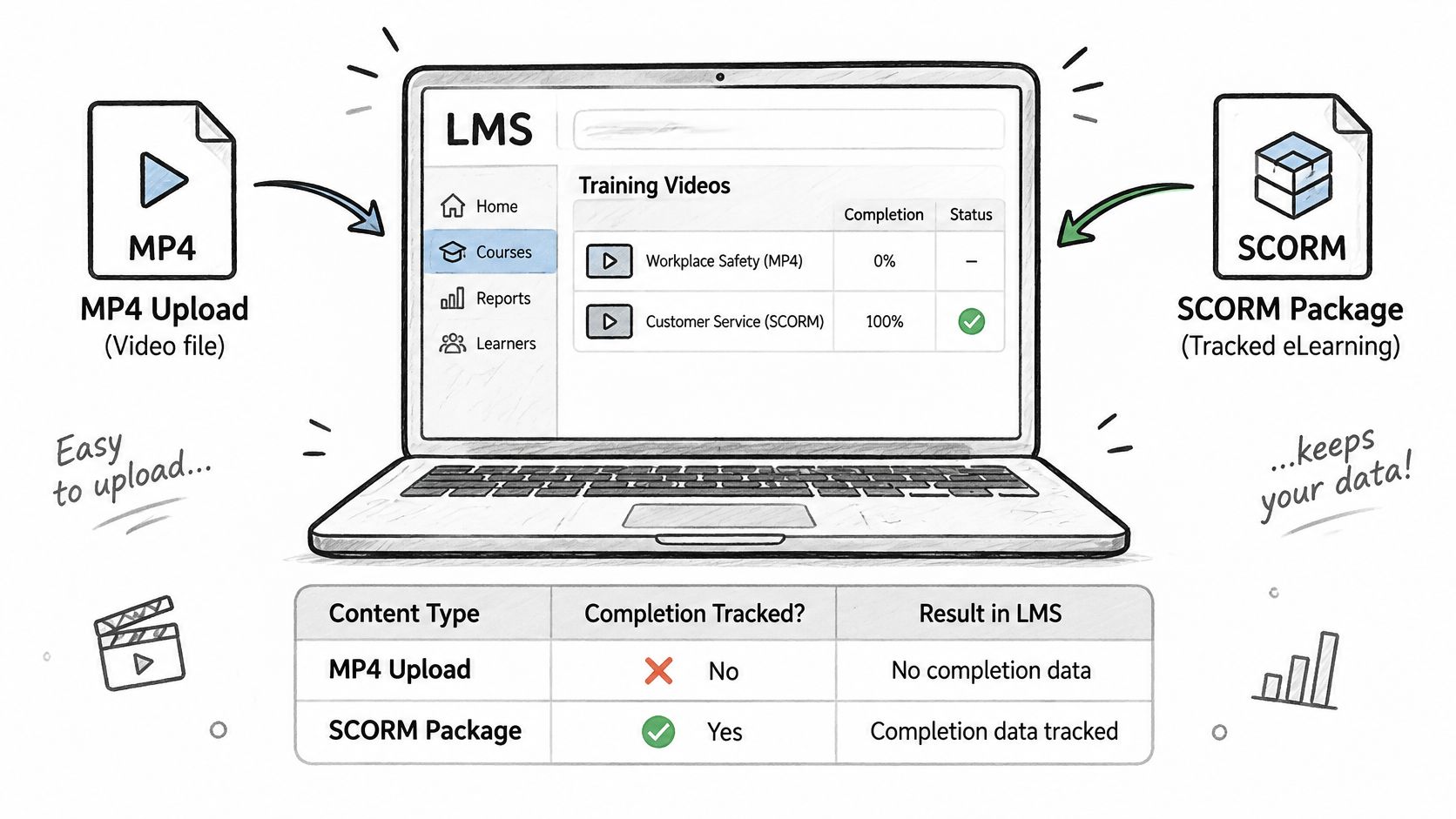
Choose the delivery format based on what your learning management system can record. A video file may play smoothly while leaving you with little evidence of completion.
| Delivery format | What it reports | Best for | Watch-out | |---|---|---|---| | MP4 upload | Page opened, playback only if logged | Quick refreshers and reference clips | Little or no completion data | | SCORM package | Completion, time, pass or fail | Compliance and mandatory courses | Check which SCORM version your LMS accepts | | xAPI statements | Detailed activity records | Learning spread across several tools | Needs a learning record store | | Embedded link | Views at best | Internal wiki or intranet pages | Weak reporting and easy to lose track of |
A quick refresher may work as an MP4, but a mandatory course needs a format that reports the completion and assessment data your LMS supports. An xAPI stream can record activity across tools, but it needs a learning record store to receive those statements. For practical context on maintaining records, see this overview of documenting employee training for compliance. For the publishing workflow, use the LMS video publishing guide.
Check access, not just playback
Captions need human review. The W3C's WCAG 3.0 working guidance emphasizes adjustable caption styling, speaker and sound identification, and keeping captions from obscuring essential visual information. The guidance also cites a 99% accuracy target for prerecorded captions and warns that automatic captions may be substantially less accurate.
Add a transcript, identify speakers when more than one person talks, and label meaningful sound effects. If the essential instruction is visual, such as a machine changing state, provide audio description or verbal narration of that action. Let learners toggle closed captions instead of permanently burning them into the image, and keep captions clear of buttons, labels, and other important visuals.
Finally, test the released file on a phone and a slow connection. A lesson that only works on a large screen with reliable bandwidth isn't ready for a workforce that may be watching between tasks.
Measuring Retention and On-the-Job Behavior Change
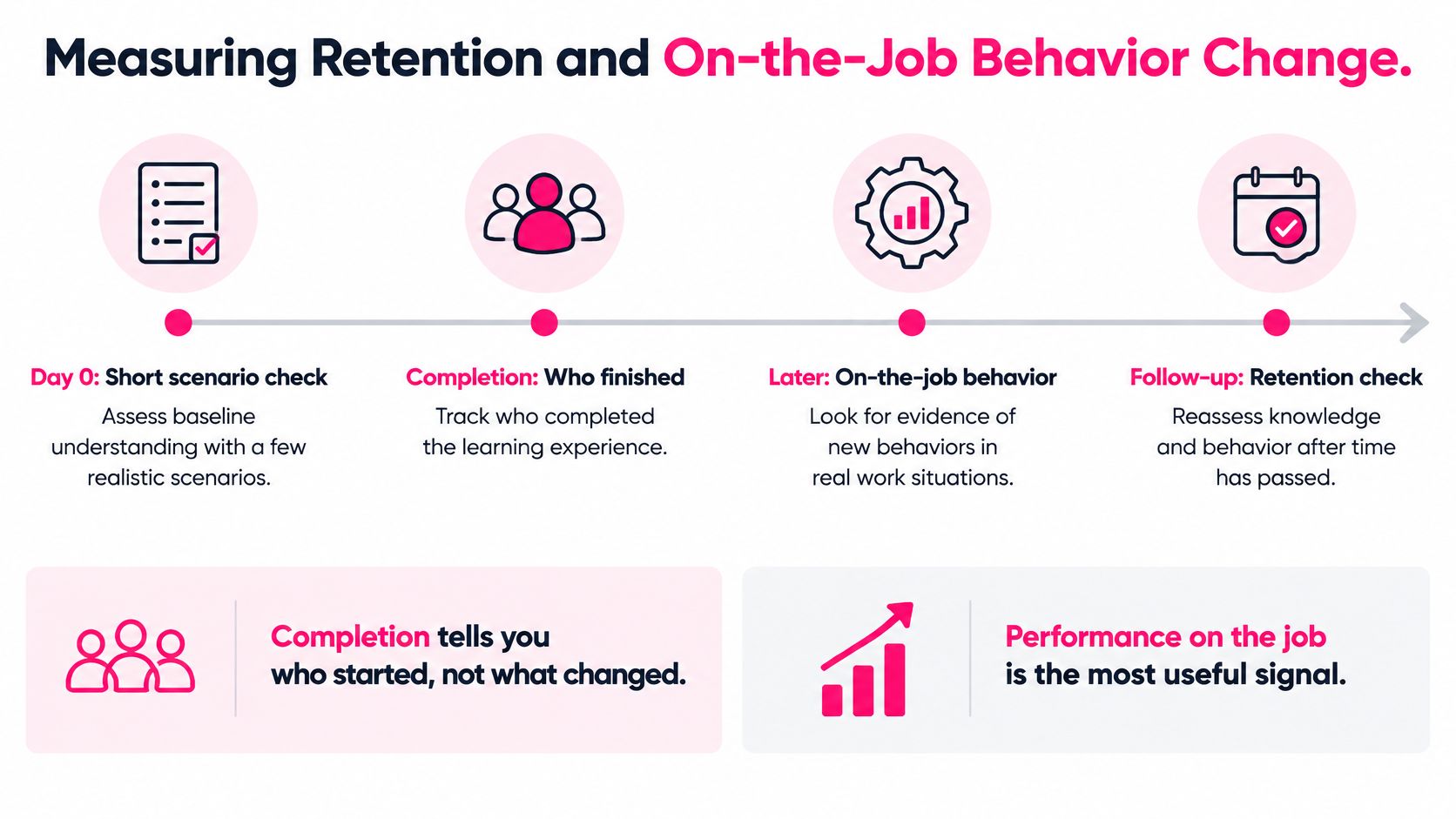
Use a measurement timeline that follows the learner from the first scenario to actual performance. Completion tells you who finished, not what changed. The most useful signal is whether employees carry out the task correctly at work.
- Day 0: Use a short scenario check to see whether the learner can choose an appropriate response after watching.
- Week 1: Review completion and drop-off points to find where people stop watching.
- Weeks 2–4: Observe the task or check a relevant error count to see whether the lesson transfers to work.
- At 30 days: Give a delayed quiz or scenario check to see whether the learner can still retrieve the key decision.
The manager's follow-up is the step many video workflows leave out. A 2025 workplace-learning report found that 15% of employees said their manager had helped them build a career plan in the previous six months, down five percentage points from 2024, according to the LinkedIn Workplace Learning Report 2025. That finding doesn't measure training-video follow-up, but it underscores why manager support shouldn't be assumed.
Assign each learner a short practice task and ask their manager to hold a five-minute discussion within a week of viewing. For a customer-facing lesson, the employee might rehearse the response with a manager before using it with a customer. When a task involves physical risk or complex judgment, a video should prepare the learner, not replace a live demonstration or coached practice.
Track completion, quiz responses, observed behavior, and relevant operational errors separately. Review patterns rather than treating any single measure as proof. VideoLearningAI's implementation checklist recommends publishing, measuring completion, and iterating every two weeks. If viewers drop off at the same timestamp, cut or split that portion and check whether the edited version still teaches the task. A content performance tracking guide can help teams organize those signals around the lesson and its intended result.
Launch Your First Staff Training Video This Week
Start with a task that's narrow enough to teach and important enough to practice. A policy change or one software action makes a better pilot than a broad subject such as “customer service.”
1. Choose the task and manager. Confirm who'll help the learner apply the instruction after viewing. 2. Set the format. Use the training-type table to select a target length and one objective. 3. Draft the script. Start with the workplace moment, then use the six-step process to shape the narration and scenes. 4. Reuse a structure. A consistent template makes the first version quicker to produce and easier to review. 5. Pilot and measure. Test with a small learner group, set a completion target, and schedule a 30-day retention check. 6. Book the follow-up. Put the manager discussion in the week after viewing and review the video's performance two weeks after launch.
VideoLearningAI's workflow moves from script to host selection, scene creation, and sharing by MP4 or public link. Reusing templates and keeping one objective per lesson can help teams get a first version ready in days, then improve it using engagement data.
---
VideoLearningAI turns lesson ideas and training materials into structured, bite-sized videos with narration, visuals, captions, and editable content, without requiring video-editing skills. If you're ready to build a staff training video around a real workplace task, try the free trial and visit VideoLearningAI.