41% of brands were using AI for video creation in 2025, compared with 18% in 2024, according to Wistia's State of Video Report. That makes adoption a less useful buying question than validation: can your team turn generated output into training it can confidently publish?
For an AI video creator app, a convincing demo isn't enough. Training buyers need to establish whether the lesson is accurate, accessible, compatible with their learning management system, and effective for the task learners must perform. The strongest purchase decision starts with those requirements, not avatar realism or the longest feature list.
Table of Contents
- Match the category to the source material - Inspect meaning as well as appearance - Run accessibility review in a fixed order - Establish the upload boundary - Treat voices and likenesses as separate assets - Build and inspect during the opening week - Revise and publish during the closing week - Use a weakest-link decision rule - Calculate capacity before unit cost - Organize around a task - Use engagement evidence carefully - Choose the format before the presenter - Apply situation-specific prioritiesAI Video Creator Apps by Category
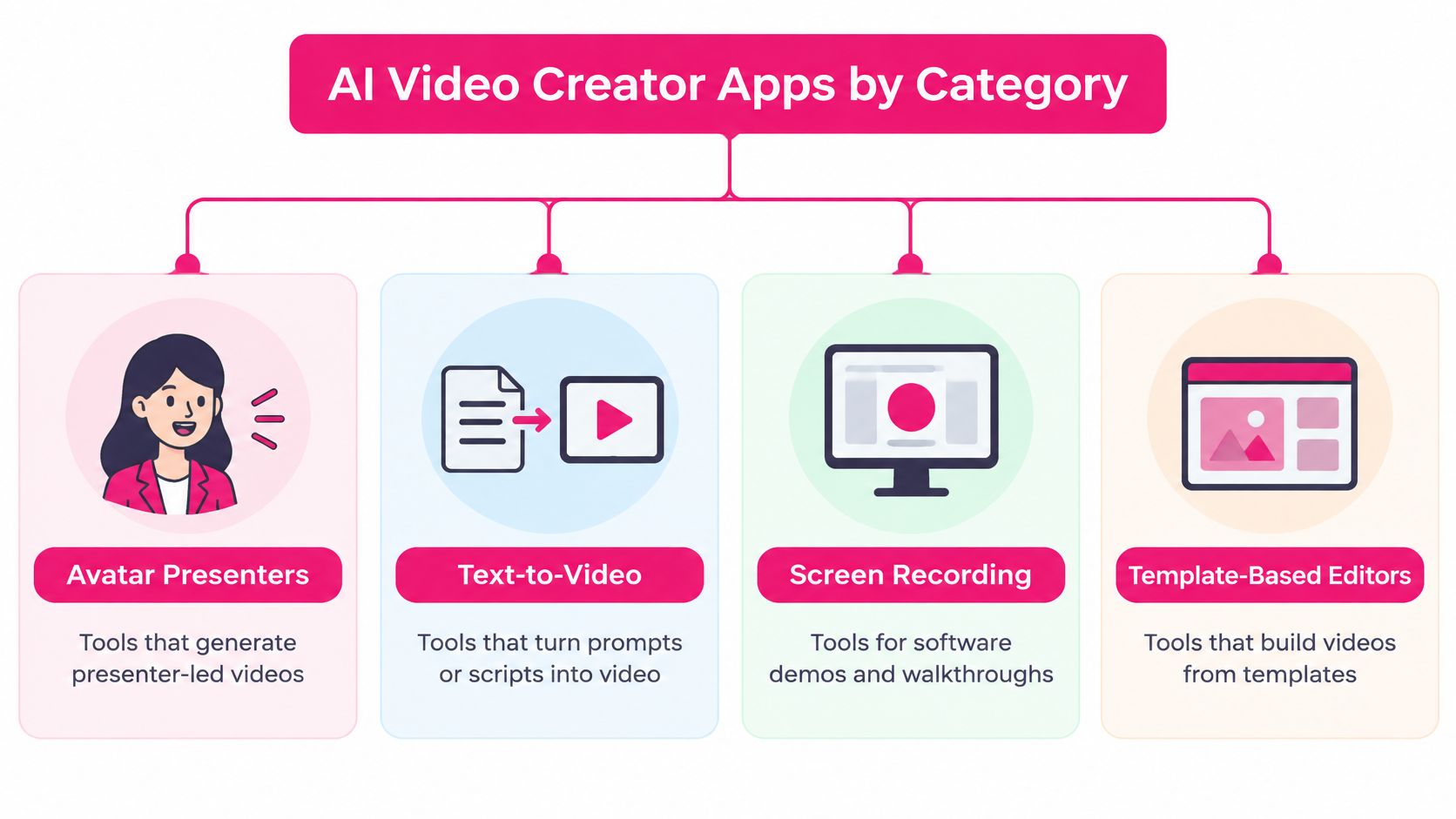
Buying by logo leads to mismatches. Buying by production job prevents them. Four categories cover most of the market, and each starts from different raw material.
AI video creator app categories and their trade-offs
| Category | Examples | Typical job | Main trade-off | |---|---|---|---| | AI avatar presenter | Synthesia, HeyGen | Scripted talking-head lessons | Realism can outrun learning value | | Editor with AI assist | VEED, Camtasia | Editing recorded screens and clips | Still needs timeline work | | Microlearning generator | VideoLearningAI | Turning course material into short lessons | Check accuracy and LMS output | | Text-to-video generator | Prompt-based clip generator | Short clips built from a text prompt | Factual accuracy must be reviewed |
These categories describe starting points, not strict product boundaries. Some tools bundle presenters, editing and templates. Identify your main input first, then shortlist only the row that handles it.
Avatar presenters fit lessons where a consistent speaker delivers an approved script. Synthesia or HeyGen suit that presenter-led format. Measure the result by whether learners can repeat the procedure after watching, which often depends more on diagrams and worked examples than on the speaker.
Editors with AI assist fit teams that already hold recordings, interviews or product captures. VEED and Camtasia belong on that shortlist. Test how much trimming, sequencing and caption correction remains after the assist features run.
Match the category to the source material
A microlearning generator starts with knowledge that needs instructional structure. VideoLearningAI fits this category by turning course material into short training videos. Judge the output on whether conditions, exceptions and required actions survive intact. Shorter wording alone proves little.
A text-to-video generator produces illustrative clips from a prompt. Treat each clip as a proposal, not as a record of how a place, person or process looks. Workflows that mix synthetic and supplied footage benefit from provenance review, including tools that offer authenticity checks for generated videos](https://www.aivideodetector.com/blog/turn-link-into-video), yet that review cannot replace validation by a subject expert.
Viewer comfort with synthetic video is broad. Receptiveness still leaves the buying tests open. Accuracy, accessibility and measured change in task performance decide whether a category choice was correct.
Choose the production category before comparing individual features. A strong prompt-generated scene will not fix a missing screen demonstration. A polished presenter will not repair a poorly structured lesson.
Feature and Accessibility Checks Before Buying
Start with output quality, templates, ease of use, LMS export, and compliance and accuracy. Inspect the generated lesson before judging the interface. A convenient workflow isn't useful if the final video changes the meaning of your source material.
Feature criteria, what to check and red flags
| Criterion | What to check | Red flag | |---|---|---| | Output quality | Presenter, diagrams and text stay stable between frames; script followed closely | Mistranslated labels, warped faces or flicker | | Templates | Onboarding, compliance, sales and customer education templates; branding carries across lessons | Templates that cannot be edited or reused | | Ease of use | Script, voice, captions and visuals generated in one pass; revisions without timeline work | Manual editing needed for every change | | LMS export | SCORM package as well as MP4 | MP4 only, with no completion tracking | | Compliance and accuracy | Captions editable; vendor says users must review output | Captions that cannot be reviewed or no accuracy statement |
Inspect meaning as well as appearance
The AIGCBench framework evaluates image-to-video systems using 11 metrics spanning control–video alignment, motion effects, temporal consistency, and overall video quality. Use those dimensions to challenge an app's overall quality score, not as a claim that the app itself has passed that benchmark.
Watch for objects changing between frames, diagram arrows pointing at the wrong component, and labels that contradict the narration. For a software lesson, compare every visible instruction with the actual interface. Ask vendors how they measure failures on instructional assets, not just attractive scenes.
Then make a substantive revision. Replace a technical term, alter an instruction, and change a scene's purpose. Check whether captions, narration, and visuals remain synchronized.
Our workflow requires no video editing skills: users provide a script or ideas, and AI handles visuals, voiceovers, timing, and rendering. We also support MP4 and SCORM exports. Test the actual SCORM package in your LMS, since a standalone MP4 doesn't itself provide SCORM completion reporting.
Run accessibility review in a fixed order
A ScreenPal survey of more than 600 educators in 2025 found that only 16% of K–12 teachers captioned 76–100% of their videos, compared with 37% of higher-education educators. Generating captions and consistently delivering accessible lessons are different jobs.
Apply this review sequence:
- Check terminology first. Compare captions with the approved script, especially regulatory vocabulary, names, abbreviations, and product terms.
- Inspect speaker labels and timing. Make sure learners can identify who's speaking and read captions alongside the relevant scene.
- Describe essential visual information. Add audio description when the screen communicates something the narration doesn't explain.
- Review contrast and placement. Keep text readable and captions clear of instructional labels or controls.
- Provide companion materials. Supply an accurate transcript or a structured, screen-reader-friendly document.
For caption-file preparation, use the subtitle formatting tips from Translate AI alongside a content review. Our video accessibility guidelines provide another practical reference for planning that review.
> Purchase gate: Don't accept automatic captions as proof of accessibility, or successful rendering as proof of accuracy.
Our AI-generated videos may not be factually accurate and shouldn't be relied upon as a source of truth. Users are solely responsible for reviewing, editing, and validating every generated video before use. Assign that responsibility to a named reviewer before publishing.
Privacy and Rights Before You Upload
A training script can contain more than instructional content. Employee names, customer examples, internal escalation procedures, and unreleased product details may all appear in an otherwise routine lesson. Review the upload rules before giving an app real organizational material.
Treat the vendor's terms and contractual commitments as the decision documents. A marketing statement about security doesn't answer whether a particular subscription permits your intended use or protects the material you're uploading.
Establish the upload boundary
Record clear answers to these questions:
- Model training use. Will uploaded scripts, documents, recordings, or generated outputs be used to train models? Is an opt-out available, and does it cover relevant subprocessors?
- Storage and retention. Where is material stored, who can access it, and how long are source files and backups retained?
- Ownership and permitted use. What rights do you receive in generated videos? Can you distribute them commercially, externally, and to customers?
- Deletion. Can you delete projects and request deletion of retained source material? Clarify whether deletion covers vendor-held copies, not just removal from your dashboard.
Don't infer these answers from the availability of an export button. Being able to download a video doesn't establish rights to every image, voice, or uploaded asset it contains.
For a trial, replace identifying details with fictional equivalents while preserving the instructional difficulty. Keep the technical vocabulary and decision logic, but remove actual customer records, employee identifiers, and confidential screenshots. If personal data is necessary, have your privacy or procurement lead assess the need for a data processing agreement before uploading it.
Treat voices and likenesses as separate assets
A narrator's voice and an employee's likeness deserve their own approval process. Review our explanation of AI voice cloning when deciding whether synthetic narration or an identifiable person's voice is appropriate.
Document who authorized the asset, its permitted uses, and how future updates will be handled. Don't treat permission for an internal training recording as automatic permission for public customer education.
> Keep unresolved privacy and rights questions on the purchase scorecard. Don't let a successful creative trial silently turn into approval to upload confidential material.
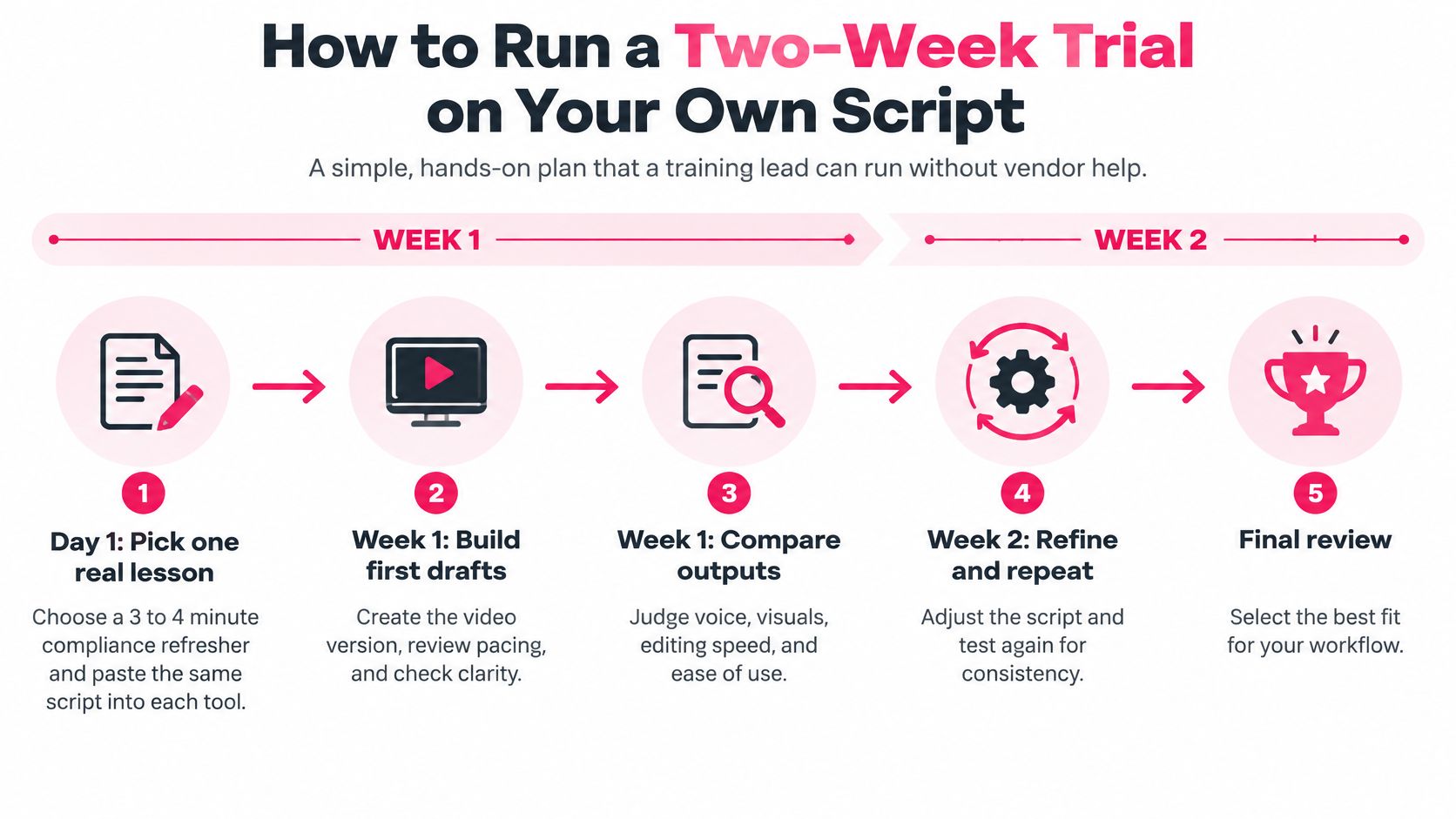
How to Run a Two-Week Trial on Your Own Script
Use a proposed two-week trial to compare complete publishing workflows, not isolated demos. The schedule below is a practical test design, not a guarantee that every procurement or accessibility review will fit that window.
Choose a real lesson with an approved source document, a clear learning objective, and a quiz or observable task. A compliance refresher works well because reviewers can check whether the app preserves obligations and exceptions.
!A five-step instructional guide titled How to Run a Two-Week Trial on Your Own Script.
Build and inspect during the opening week
1. Freeze the input. Paste the same approved script into each shortlisted app. Keep the learning objective, requested format, and source assets consistent so you're comparing tools rather than different briefs.
2. Record the complete production time. Measure from starting the project to obtaining a reviewable export. Separate active staff work from unattended generation, since they affect your publishing schedule differently.
3. Review against the source. Have a subject-matter reviewer identify factual changes, omitted exceptions, mistranslated terminology, and misleading visuals. Have an accessibility reviewer inspect the exported lesson, not only the editing preview.
Keep a defect log with the scene, error, severity, and correction required. Distinguish a cosmetic preference from an instruction that could cause a learner to perform the task incorrectly. Don't combine them into a single undifferentiated error count.
Revise and publish during the closing week
4. Test a controlled change. Give every app the same script revision, then inspect the affected scene and surrounding material. Record whether fixing the issue introduces another defect or requires rebuilding the lesson.
5. Exercise the LMS workflow. Export the available MP4 and SCORM outputs, upload them using your LMS's supported workflows, and test launch, playback, completion reporting, and relaunch behavior. Confirm the record in the administrator view rather than trusting a learner-facing completion message.
6. Observe learners. Recruit a small representative pilot group to complete the lesson and assessment. Record answers, completion time, procedural mistakes, and points where learners need clarification.
Treat the learner pilot as a usability check, not proof of broad effectiveness. If learners miss an item, inspect the explanation and question before attributing the result to the presenter format.
Use a weakest-link decision rule
Score each app as acceptable, needs remediation, or unacceptable for accuracy, accessibility, revision work, LMS reporting, and learner task performance. Define “acceptable” before viewing the outputs, and keep critical failures separate from preferences.
Choose the app whose weakest essential criterion is still acceptable. Don't allow a strong visual score to compensate for incorrect instructions, inaccessible content, or missing reporting. If a requirement needs remediation, assign an owner and confirm the fix before committing.
Plan Limits and Pricing Compared
VideoLearningAI publishes video count and per-video duration caps together, which makes capacity math possible before a trial. The Starter listing also states a separate monthly minute allowance that does not align cleanly with its video count cap.
VideoLearningAI plans and limits
| Plan | Monthly price | Videos per month | Maximum length per video | |---|---|---|---| | Starter | $59 | 10 | 60 seconds; page also lists 25 minutes of video per month | | Pro | $99 | 20 | 2 minutes | | Enterprise | $199 | 50 | 5 minutes |
Check current terms on the VideoLearningAI pricing page, including billing period, export restrictions, and how credits are consumed by revisions. Do not treat an annual commitment and a monthly subscription as the same purchase.
Calculate capacity before unit cost
Starter includes 1,000 monthly credits, 25 minutes of video per month, AI images, AI voiceovers, export, and no watermark. Its other stated allowance is 10 videos up to 60 seconds each.
Those two limits point to different ceilings:
- Monthly-minute interpretation. $59 divided by 25 minutes is approximately $2.36 per minute.
- Video-count interpretation. Ten videos at 60 seconds total 10 minutes, making the cost $5.90 per minute.
Confirm which cap binds first. The larger allowance does not override the smaller one unless the terms say so.
Pro allows a theoretical maximum of 40 minutes from 20 videos at 2 minutes each, or approximately $2.48 per minute at full use. Enterprise allows a theoretical ceiling of 250 minutes from 50 videos at 5 minutes each, or approximately $0.80 per minute at full use. These are arithmetic ceilings from listed allowances. They say nothing about how many minutes survive review or how regeneration draws down credits.
The useful denominator is approved, published minutes. A rejected draft adds no value to the training library even when it consumes production effort. Track reviewer time and correction work separately, because a low subscription cost can hide an expensive publishing process.
Count monthly lesson demand and longest single lesson first. A lesson that exceeds the per-video cap needs a split or a plan with a longer duration allowance, no matter how much unused monthly capacity remains.
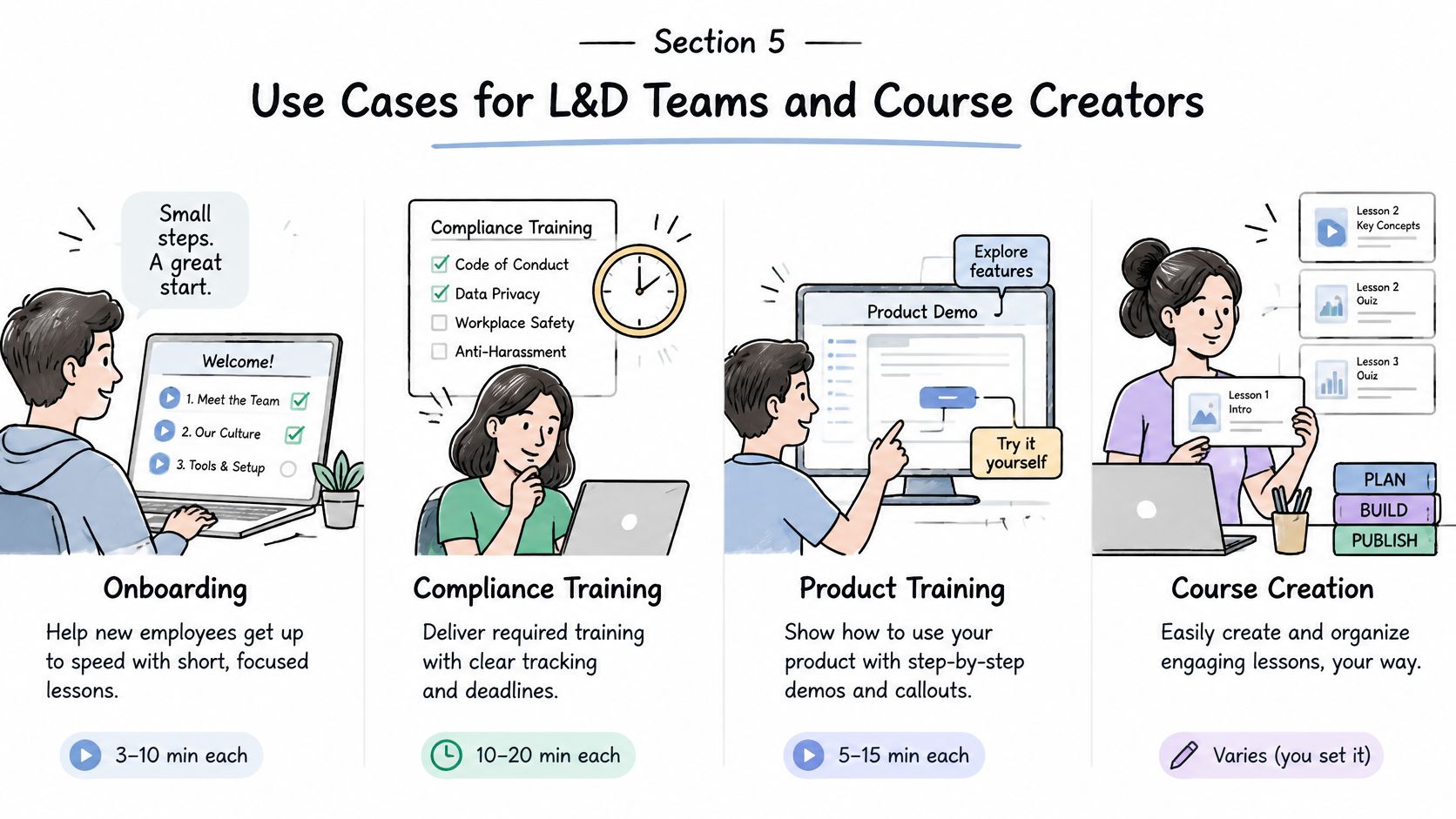
Use Cases for L&D Teams and Course Creators
Say an L&D team needs to refresh onboarding, compliance, sales training, and customer education from existing documents. Don't apply the same presenter-led template to every topic. Choose the format around what the learner must do afterward.
Our templates cover onboarding training, compliance training, sales enablement, and customer education. The following lengths are recommended starting points for lesson design, not measured performance guarantees.
Use cases, lesson format and length
| Use case | Best format | Length | |---|---|---| | Onboarding | Sequence of short lessons, one task per lesson | Under 6 minutes | | Compliance | Refresher split by regulation section, one assessment question each | Under 6 minutes | | Sales enablement | Vertical objection-handling or role-play clip for mobile sharing | End after the objection, response, and action | | Customer education | How-to clip shared through a public link | Cover one complete task | | Independent course creators | Lessons built from a finished PDF or slide deck | Suggested starting range of 3 to 5 minutes |
Organize around a task
For onboarding, turn a broad handbook chapter into a task such as submitting an expense claim. Show the required information, explain the approval route, and end with an action the new hire can complete. Keep unrelated policies in separate lessons.
For compliance, divide material at meaningful regulatory or procedural boundaries. Preserve the conditions under which a rule applies, then ask a question that tests the relevant decision. Don't remove an exception merely to meet a duration target.
A sales enablement clip can model an objection, an appropriate response, and the next question to ask. Vertical output suits mobile sharing, but the dialogue still needs enough context to avoid teaching an overgeneralized response.
For customer education, demonstrate a complete task and share it through a public link only when the content is approved for external distribution. Independent creators can start from a finished PDF or slide deck, restructure it around learning objectives, and export MP4 or SCORM where their course platform accepts it.
Use engagement evidence carefully
An analysis of 6.9 million video sessions across four edX courses, summarized in 5Mins' State of Microlearning report, found median engagement plateaued at roughly six minutes, while follow-up problem attempts were 56% for the shortest videos versus 31% for the longest. This supports testing short, focused lessons, not claiming that duration alone causes better workplace performance.
Our supported video lengths run from 30 seconds to 5 minutes, depending on subscription. Fit the lesson to both the instructional task and the publishing allowance.
Measure completion, midpoint abandonment, assessment attempts, and successful task execution. Views show that someone opened the content, not that they can apply it.
Choose the App That Fits Your Training Situation
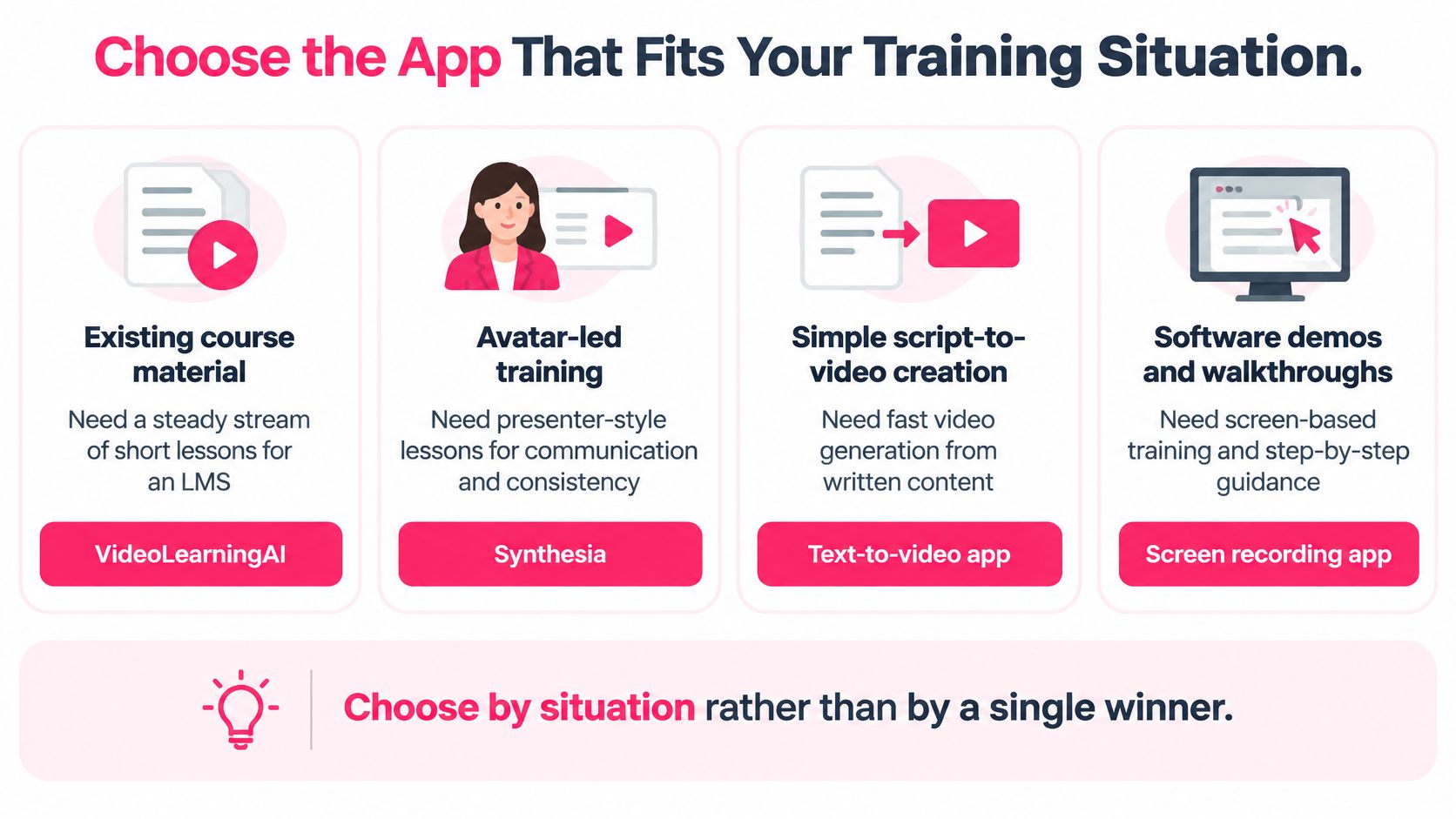
There isn't a defensible universal winner across presenter generation, screen editing, and course-material conversion. The right app removes the production work you have while leaving your team able to verify the lesson.
For teams with existing course material and a recurring LMS publishing schedule, VideoLearningAI's Microlearning Video Creator is a relevant option. We generate script, voiceover, captions, and visuals in a single pass without timeline editing. The value to test is the path from approved knowledge to a publishable learning package, not whether the presenter looks more realistic than another app's avatar.
Choose the format before the presenter
If the priority is presenter-led communication, put avatar-first tools such as Synthesia or HeyGen on the shortlist. If learners need to follow real software interactions, evaluate a screen-oriented workflow with Camtasia or VEED. Competitor plan details, prices, and export entitlements still need verification during your trial.
Don't turn presenter realism into a proxy for teaching effectiveness. A peer-reviewed workplace-training experiment published in the Journal of Workplace Learning found no significant difference in quiz-based knowledge transfer between synthetic-human and human presenters. That finding doesn't establish equivalence for every task, but it does challenge the assumption that a more human-looking presenter necessarily teaches better.
For sensitive leadership communication, consider whether a human recording better serves accountability and trust. For procedural instruction, favor whichever format most clearly shows the required action.
Apply situation-specific priorities
- LMS-heavy teams. Prioritize reliable package delivery, reusable templates, and a documented publishing process.
- Accessibility-first teams. Prioritize reviewable captions, companion materials, and a workflow that lets reviewers correct defects before release.
- Independent creators. Prioritize cost per published minute and whether the lesson format fits the course platform.
> The best demo is optional. An acceptable production workflow isn't.
Choose based on the work your team can sustain after launch: revisions, approvals, publishing, and maintenance. An app that requires less correction on your actual material can be a better fit than one that generates a more impressive sample.
Start with our 100 free credits, with no credit card required, and run the proposed trial on an approved lesson before choosing a plan.
---
VideoLearningAI offers AI-assisted microlearning creation, reusable training templates, and MP4 and SCORM exports for learning workflows. Visit VideoLearningAI to build a trial lesson from your own material, then evaluate its accuracy, accessibility, and LMS behavior before committing to regular production.